
To Set Up and Use the Zoom Waiting Room:
1. Go to the Zoom settings page at https://vcs.zoom.us/profile/setting and sign in with your @vcs.net email address and password
2. Turn Waiting room on > select Guest participants only > and customize your waiting room message, if you want, and save these settings when prompted

3. Next, click on Meetings from the left menu > then click Personal Meeting Room

4. Scroll down and click Edit this Meeting > then select Enable waiting room > and save these settings

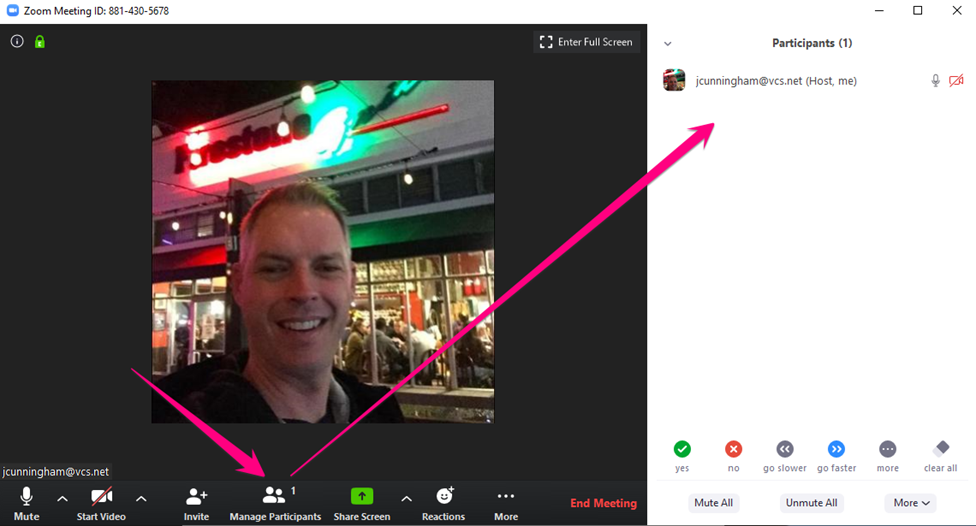
5. Each time you start a meeting, open the Manage Participants pane right away so you can begin monitoring the Waiting Room and admitting students
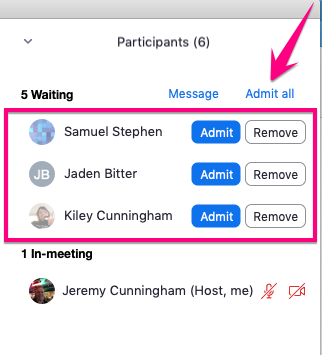
6. You can Admit or Remove students individually, or, Admit all
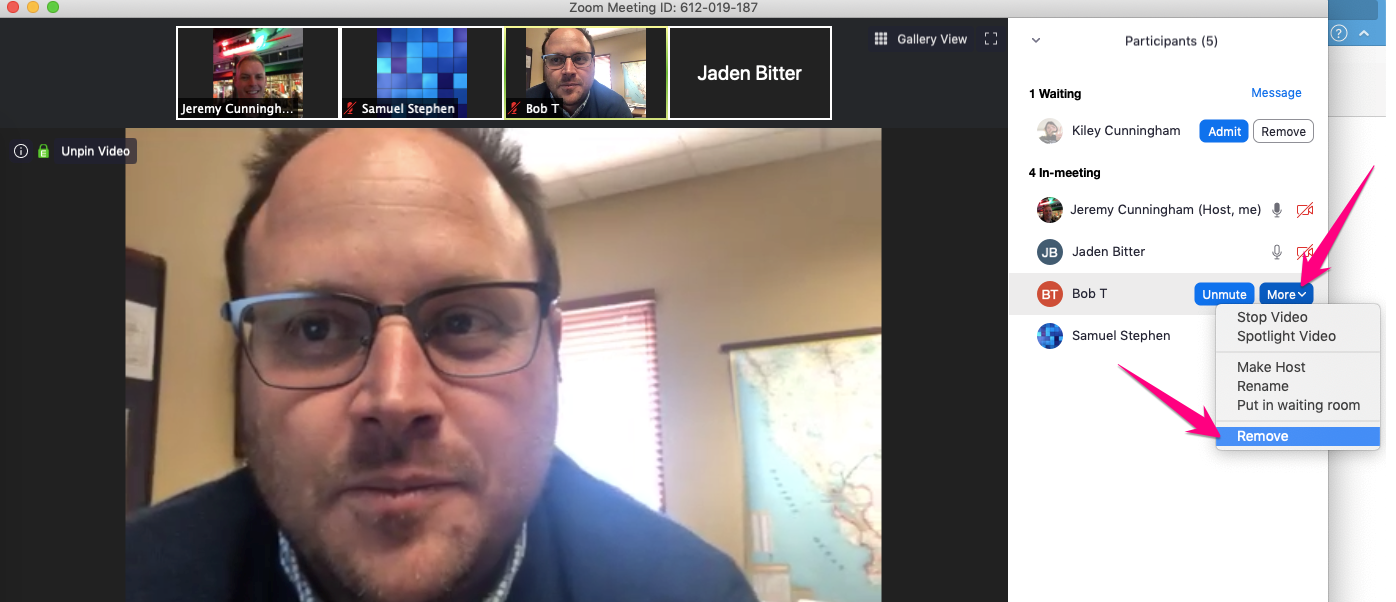
7. If you accidentally admit a Zoomcrasher, you can always remove them. If they try to get back in, they will go back in to the waiting room
- Special thanks to our Zoomcrasher below, JV Baseball assistant coach and proud VC husband and dad, Bob Tarantino!
Comments
0 comments
Please sign in to leave a comment.