
To schedule a Zoom meeting in Outlook:
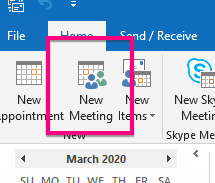
1. Go to your Outlook calendar and click New Meeting
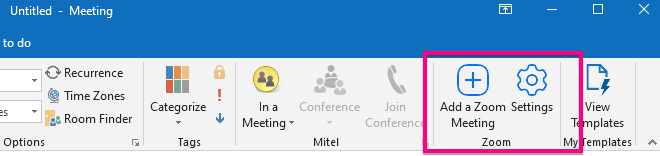
2. Click Settings from the Zoom menu on the right side of your new meeting window
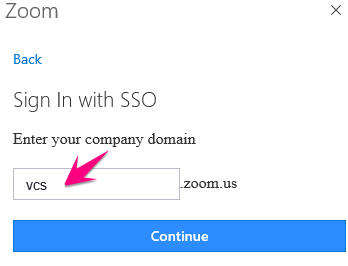
3. Enter vcs as the company domain, click continue, and sign in with your @vcs.net email address and password
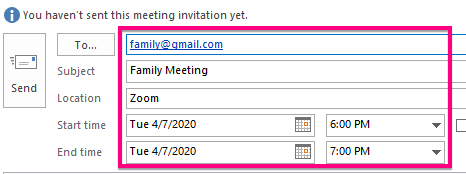
4. Fill out your meeting details
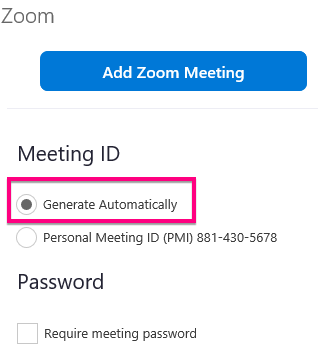
5. Select Generate Automatically from the Zoom settings pane and (add a password too if you'd like)
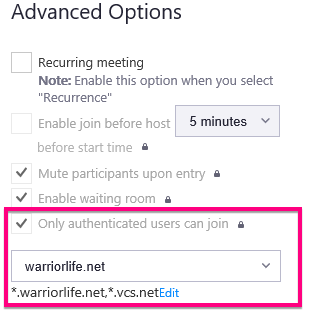
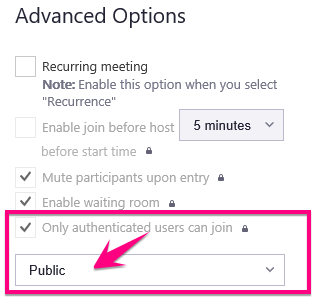
6. Scroll down, expand the Advance Options menu:
| If this meeting is for VCS staff and students: Set "Only authenticated users can join" to warriorlife.net | If this meeting is for non-VCS staff and students: Change "Only authenticated users can join" to Public |
 |
 |
7. Click Add a Zoom Meeting

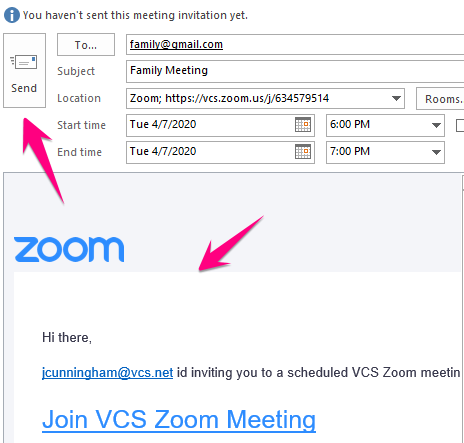
8. Zoom will add joining information to your meeting invitation, then click Send
Comments
0 comments
Please sign in to leave a comment.