
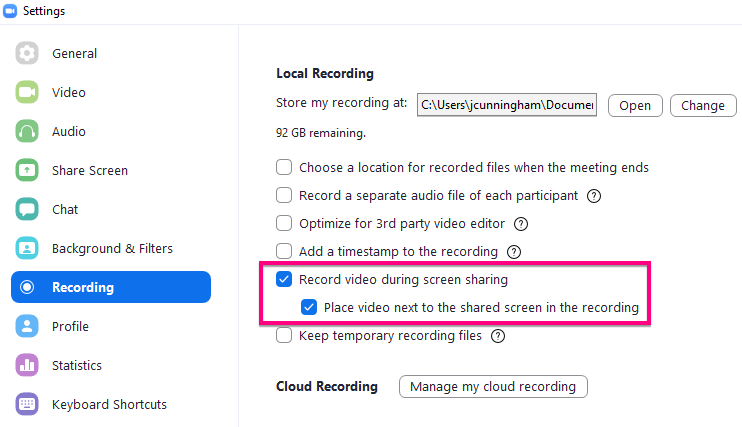
1. Go to your Zoom recording settings and confirm you have the settings you want
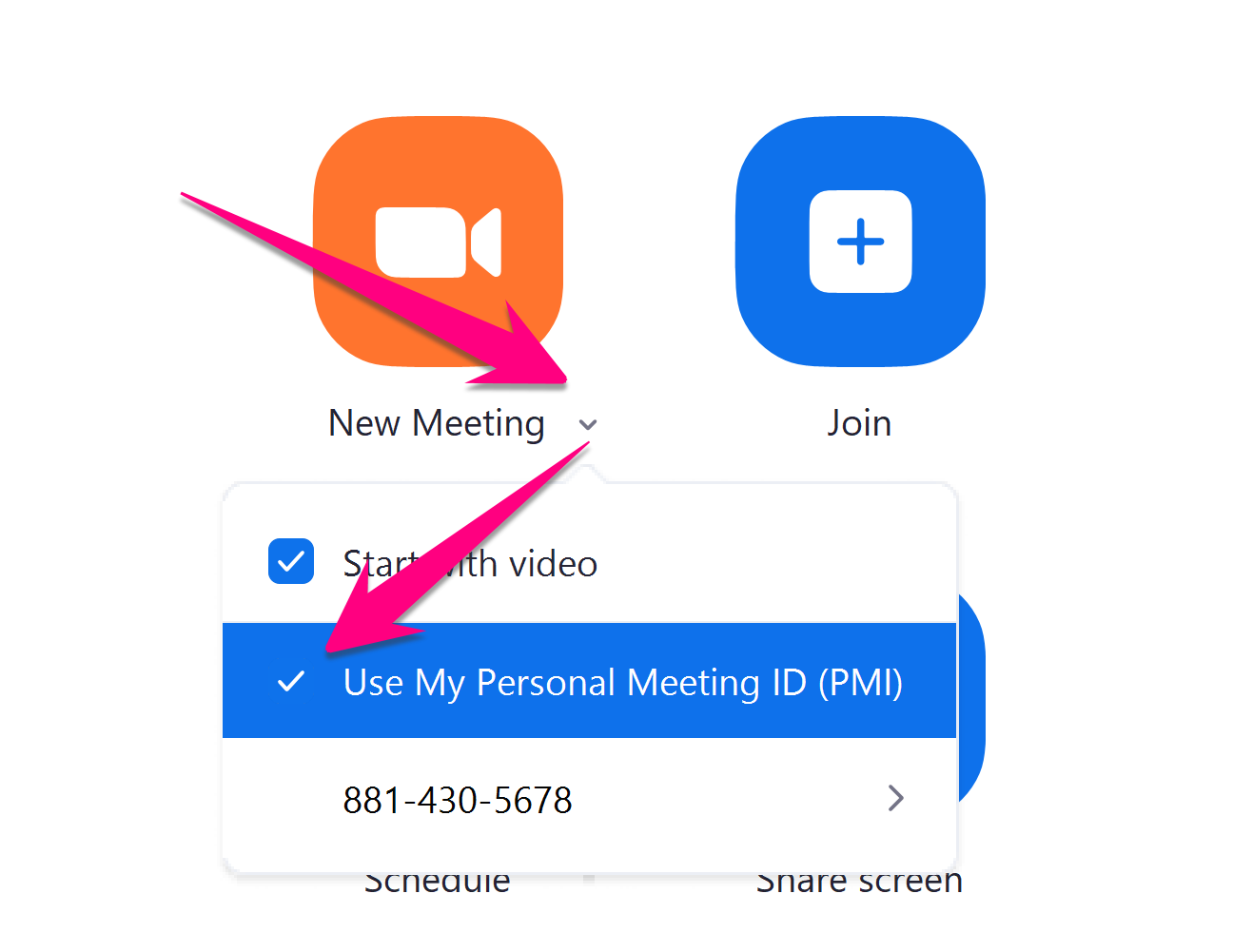
2. Start a new Zoom meeting
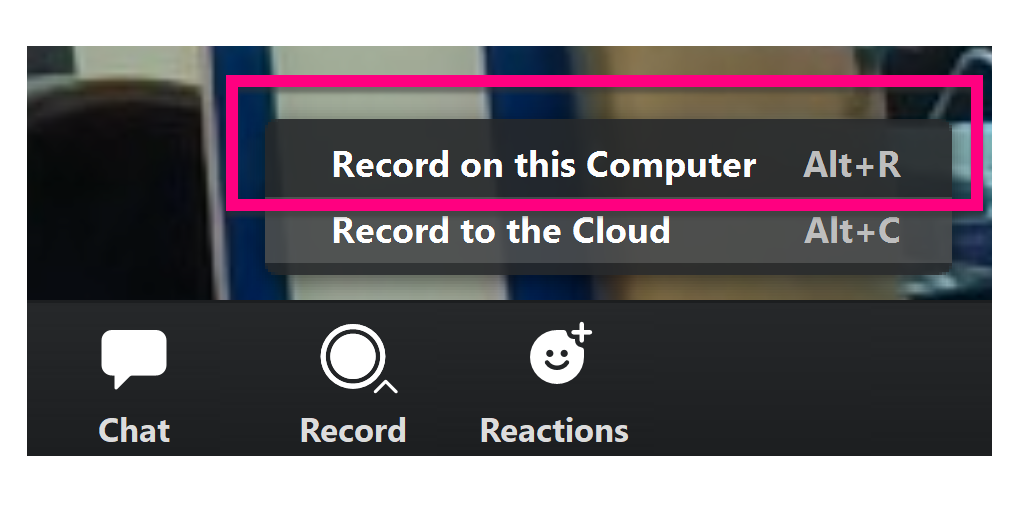
3. When you're ready to record, click Record > Record to this Computer
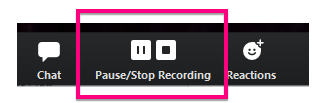
4. Use the control buttons to pause if you need a break or stop when you are finished recording
5. Click End Meeting when you're done with the meeting

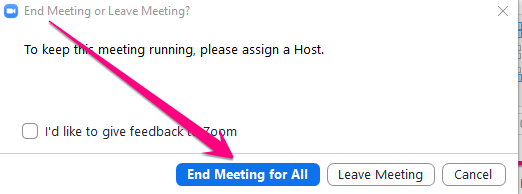
6. Click End Meeting for All when prompted
7. Your Zoom recording will process and then a folder will open with 3 recording files
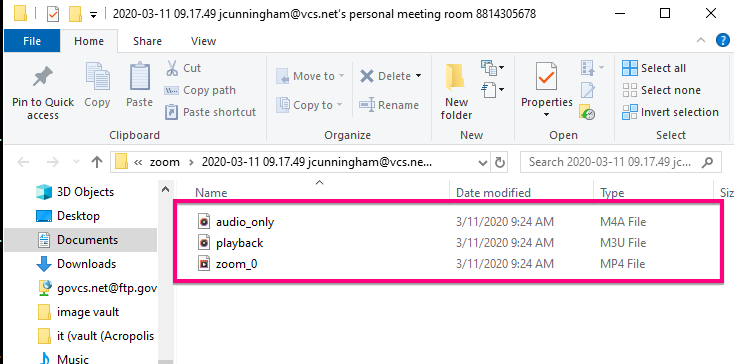
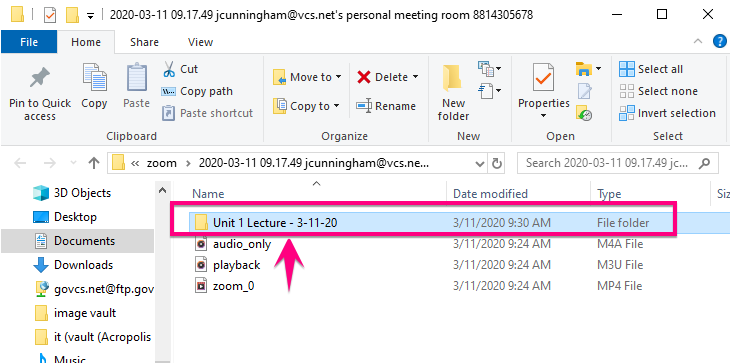
8. Create a new folder for your recording and put all 3 recording files in it
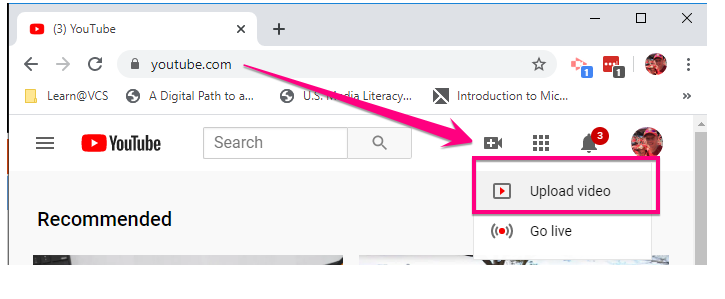
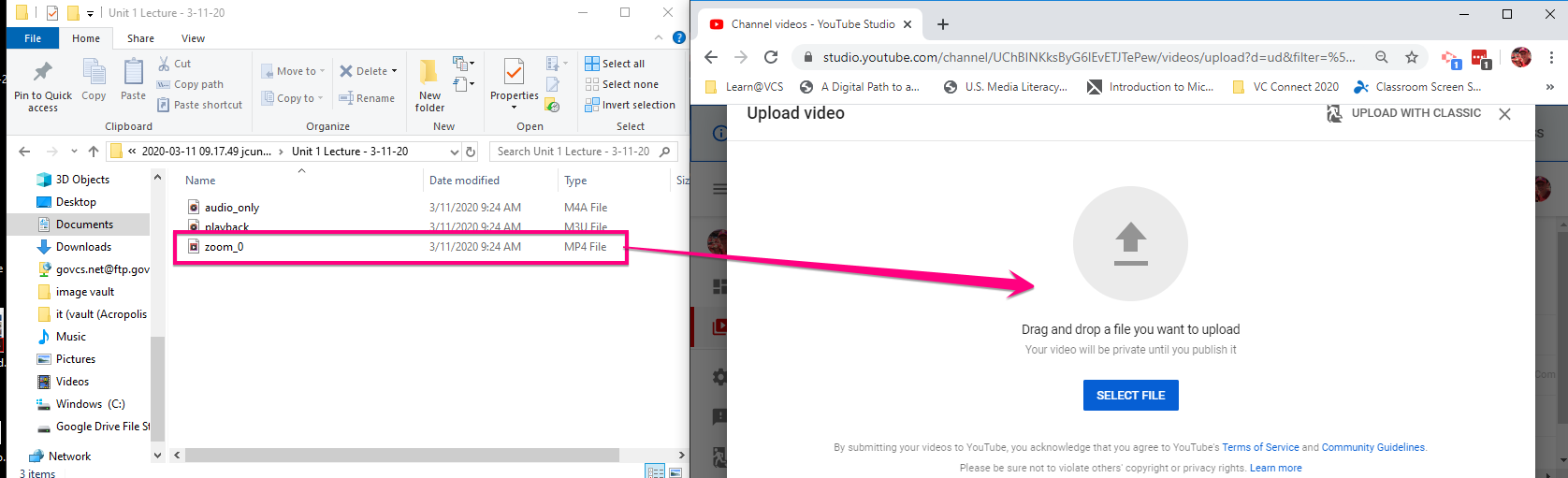
9. Go to YouTube.com and sign in with your Warriorlife account, then click the Create a video button then click Upload video
10. Drag the zoom_0.mp4 file from the folder into the YouTube uploader window
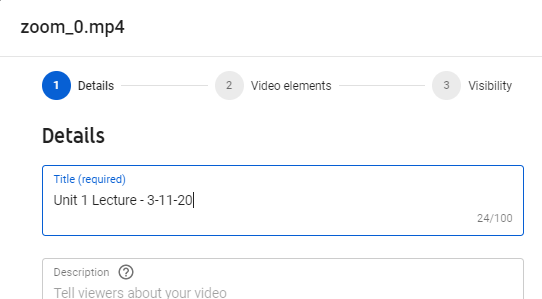
11. Provide video details, inluding:
- Title
- Audience

- License and distribution: ALLOW EMBEDDING
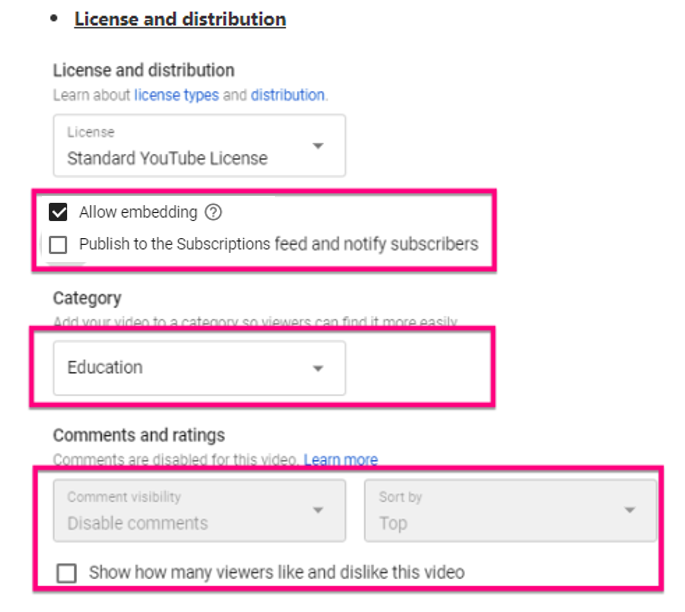
12. Click next two times then click Save
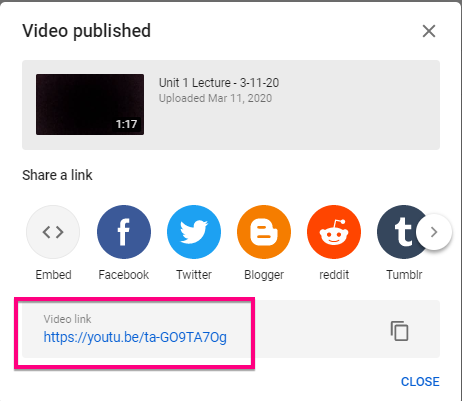
13. Get the video link to post on your Moodle page
14. Backup your recording files to an external drive or Google Drive, then delete from your laptop to preserve your hard drive space
Comments
0 comments
Please sign in to leave a comment.