1. Start your Zoom meeting.2. Click the Host Tools button on your meeting toolbar.3. Click a setting to enable it or disable it.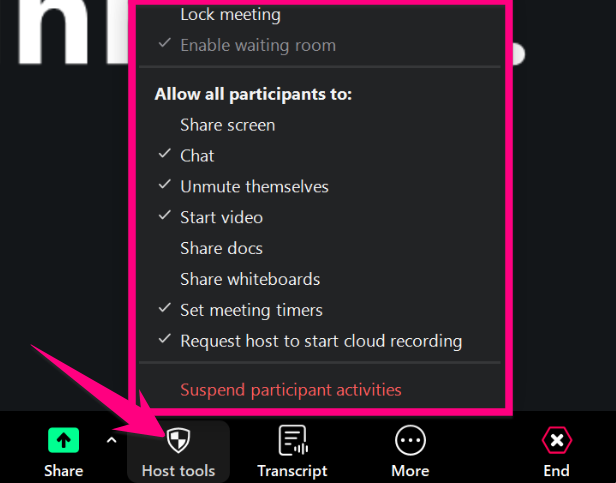
| Lock meeting: Locks the meeting, preventing new participants from joining the meeting.Enable waiting room: Turns the waiting room on or off. (Note: VCS has enabled the waiting room to ensure security of your meeting.)Share screen: Allows participants to share their screens. (Note: VCS has disabled screen sharing students for students to ensure the security of your meeting. You can enable this for students, though.)Chat: Allows participants to chat.Unmute themselves: Allows participants to unmute themselves without the host's permission.Start video: Allows participants to start their video in the meeting without the host's permission.Share docs: Allows participants to open and share Zoom Docs.Share whiteboards: Allows participants to open and share a Zoom Whiteboard.Request host to start cloud recording: Allows participants to send a request to the host to start recording to the cloud.Suspend participant activities: Turn off all participants' video, audio, Zoom Apps, and ability to share their screen. Also locks the meeting to prevent participants from joining. This will apply to all participants, including those joined using a Zoom Room.
|

Comments
0 comments
Please sign in to leave a comment.