
After upgrading to Mac OS 10.13, High Sierra, Outlook 2016 gives the error below. Please note that the exact version number on your computer might be something other than 15.34.
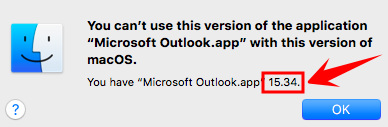
This error pops up because Outlook 2016 versions earlier than 15.35 are not compatible with Mac OS 10.13, High Sierra.
This error is resolved by updating Office 2016. This can be done one of two ways. Method 1, the simplest and easiest, is to use the built-in Office 2016 updater. Method 2 requires downloading and installing the update manually. Both methods will be explained below.
Method 1: Office 2016 Updater
- Open Microsoft Word.
- Click on the Help menu and select Check for updates.

- When the updater opens make sure that Manually is selected, and click on Check for Updates.
- You may see several updates available. Make sure all available Office updates are selected, and click on the blue Install You will need to close Word while the updates are installed.
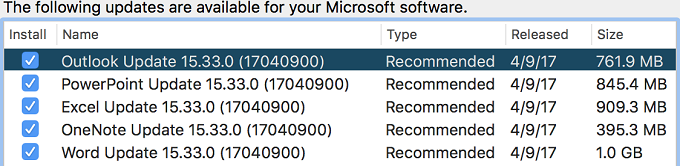
- Follow the prompts to complete the installation of the updates.
Method 2: Office 2016 Manual Update
- Please note that the manual update requires administrative credentials. If you are unable to install this update, or if you have any other questions, please contact the Technology Office.
- Install the Microsoft_Office_2016_15.40.17110800_Installer.pkg. This can be obtained from Microsoft, or from Storage.
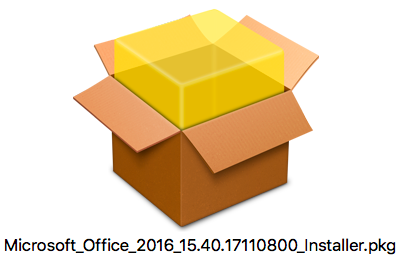
- Follow the prompts to install this update.
Both Methods: Verification
Open Outlook.
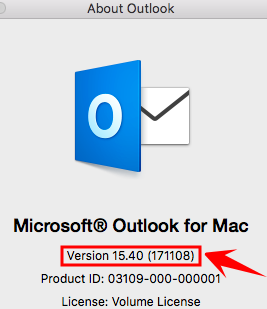
Click on Outlook > About Outlook.
Verify that your Outlook version is 15.40 or higher.
Comments
0 comments
Please sign in to leave a comment.