
If you are an owner of an email distribution list, here's how to add/remove members.
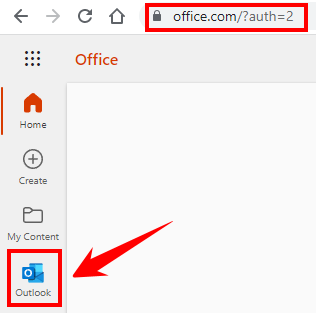
1. Login to office.com and launch Outlook
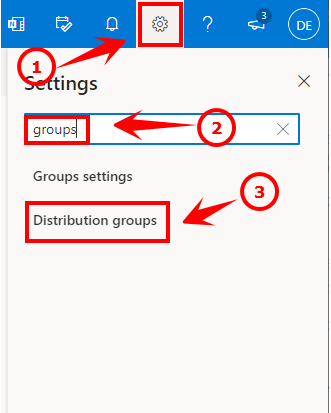
2. From Outlook on the web, click the settings gear in the upper right and search for groups. Click Distribution groups from the search list.
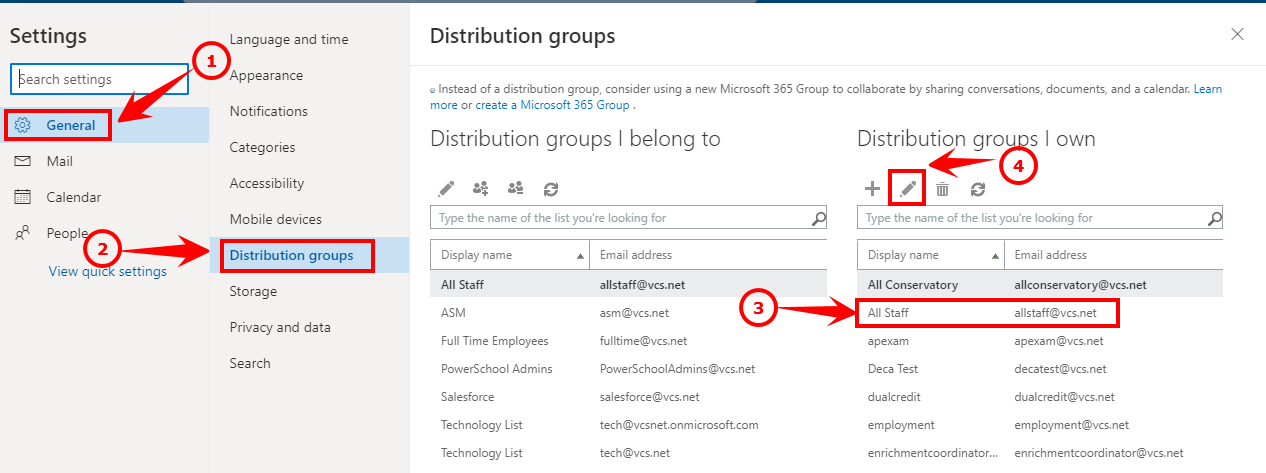
3. Next you will see two sections under Distribution groups. Groups you belong to and groups you own.
If you are the owner/manager of the group you will see it in the Distribution groups I own on the right side.
Select the group and click the pencil icon to edit.
Note: If you don't see the group in this list, it means you aren't the group admin. If you need access, contact helpdesk@vcs.net to request the correct permissions.
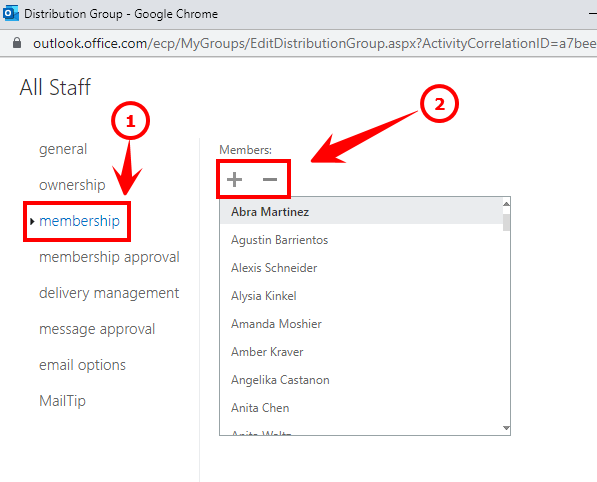
4. Next click membership and use the + or - to add/remove members. Be sure to click save once done.
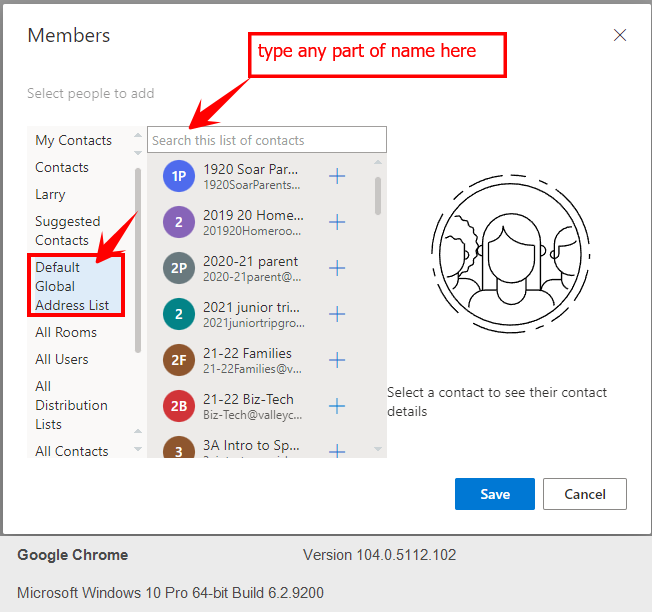
5. When adding a member choose Default Global Address List and search for the user. Click the + and then Save. Note if you don't see this window and it's blank, try using a different browser such as Edge or Chrome.
Comments
0 comments
Please sign in to leave a comment.