
Although you can collect and view almost any file type in a Moodle Assignment, you cannot view the default image files from an iPad/iPhone. Those files must be downloaded from the Moodle Assignment to view.
Or, the steps below can be used for submitting photos from iPad/iPhone to Moodle that can be viewed.
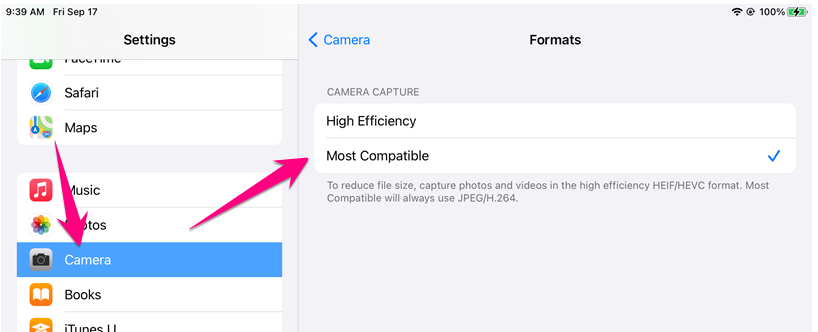
1. Go to Settings > Camera > Formats and select Most Compatible
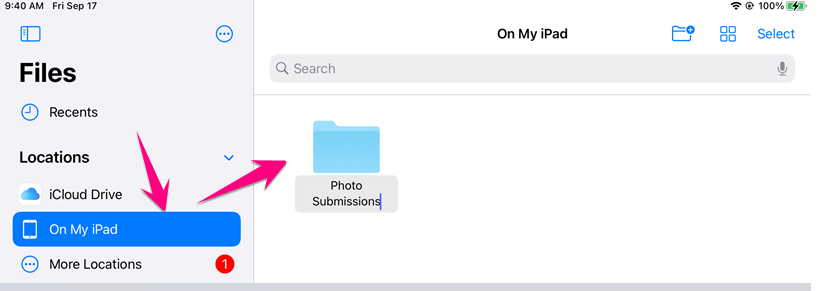
2. Go to the Files App > Create New Folder > and name folder
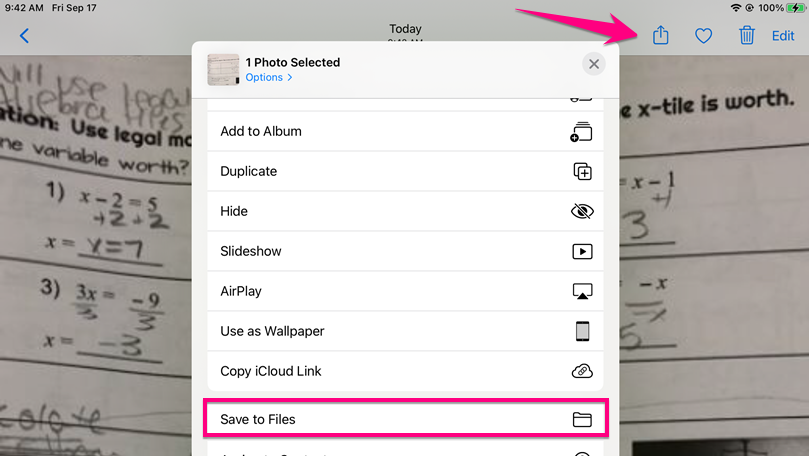
3. Take a picture > Share > Save to Files > choose folder
- For this and all future photo submissions, you do not need to repeat steps 1-2
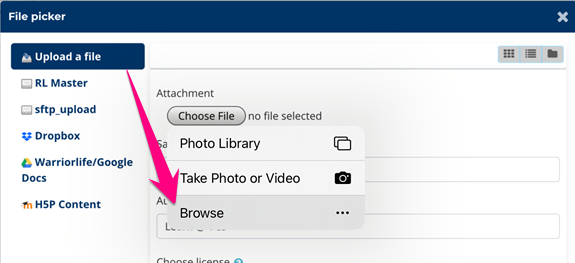
4. Browse the Files App, not Photo Library, when uploading to Moodle
Comments
0 comments
Please sign in to leave a comment.