
When using Chrome to launch a web-based application that requires access to your computer's camera and microphone, Chrome will prompt you for permission. The prompt will look something like this:
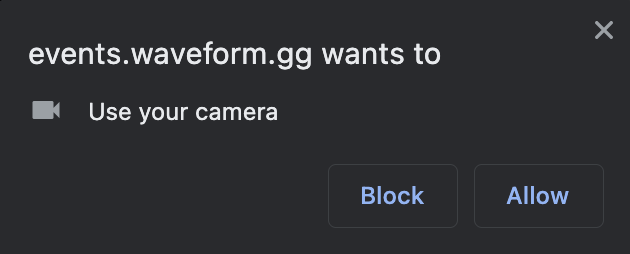
If you accidentally click "Block," you can manually remove the Block on your camera or microphone. Lets use the Camera as an example. Once you make these changes, you can try to access the camera again once you're in a table. Chrome will prompt you for permission. Be sure to click Allow.
To grant camera access to Chrome:
- Launch Chrome on your laptop.
- At the top right of the Chrome browser window, find the vertical ellipsis icon
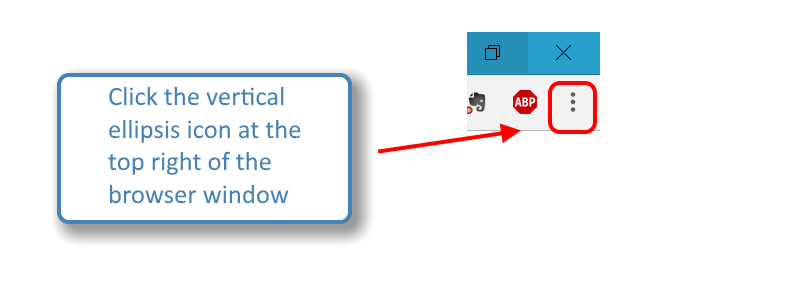
- Click Settings and then:
- On the left pane, click Privacy and security
- Under Privacy and security, click Site Settings
- Scroll down to the Permissions section and find the camera option, then click camera
- You will see the site URL (events.waveform.gg:443) under the Block category
- You will want to perform the following 3 steps:
- Click the trash can icon to delete the block entry for our event website (vents.waveform.gg:443)
- Make sure there are no entries under the block category
- Make sure the correct camera is selected
And that's it! If needed, you can repeat the above steps for the microphone option. You should be all set!
Comments
0 comments
Article is closed for comments.