
1. Go to your Learn@VCS, click Turn editing on, then click Add an activity or resource

2. Select External Tool and click Add
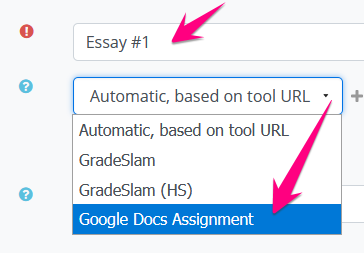
3. Name your assignment, then select Google Docs Assignment from the menu
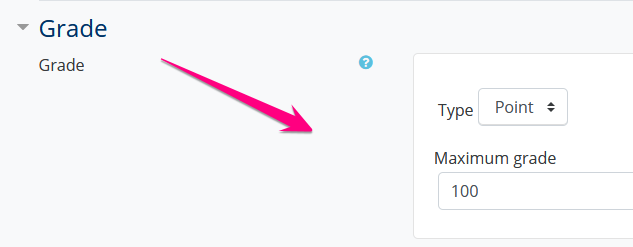
4. Give the assignment a point value, if you plan to score it in Learn@VCS
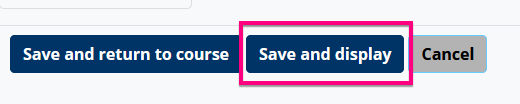
5. Click Save and display
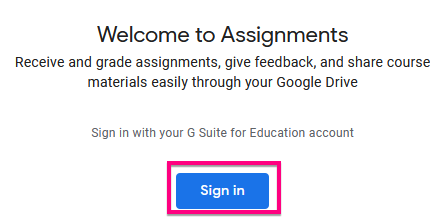
6. Click Sign in
7. Sign in with your Warriorlife email and password
8. Click Link when prompted

9. You're now signed in to Google Assignments with your Warriorlife account inside Learn@VCS and you're ready to accept and evaluate Google Docs assignments

Comments
0 comments
Please sign in to leave a comment.