
To import a test bank into Moodle:
1. Go to your class page and the tab that you want to put the quiz on, then click the Turn editing on button
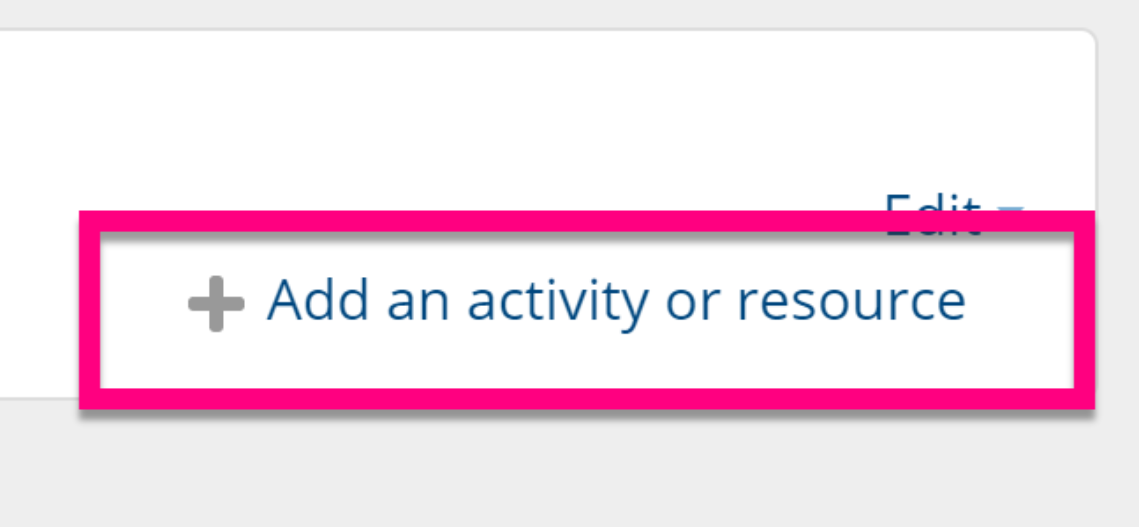
2. Click Add an activity or resource
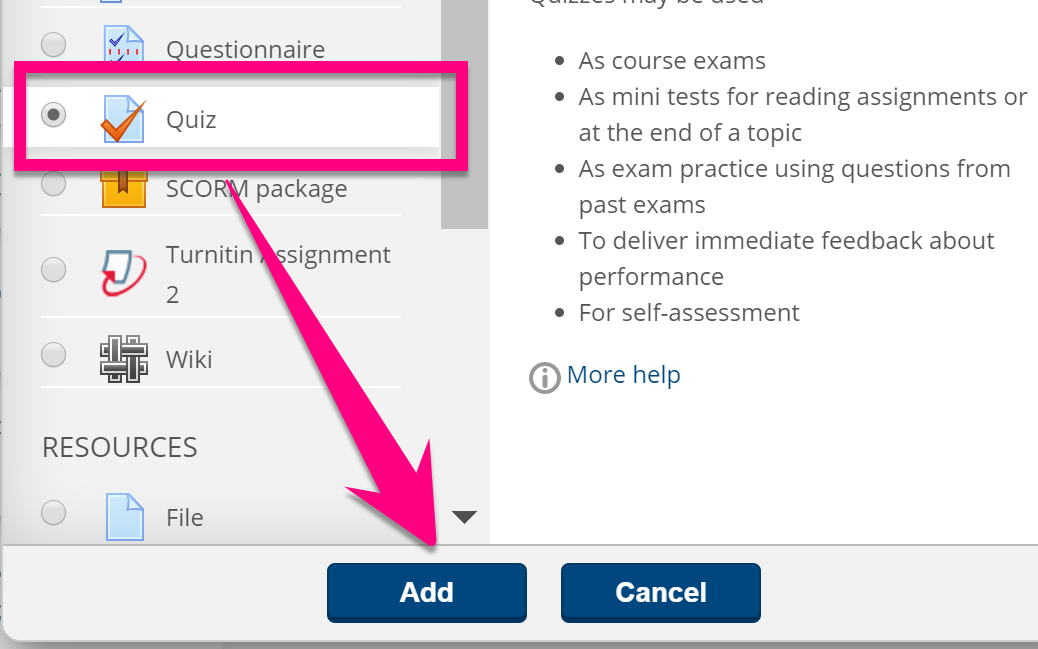
3. Select Quiz and click Add
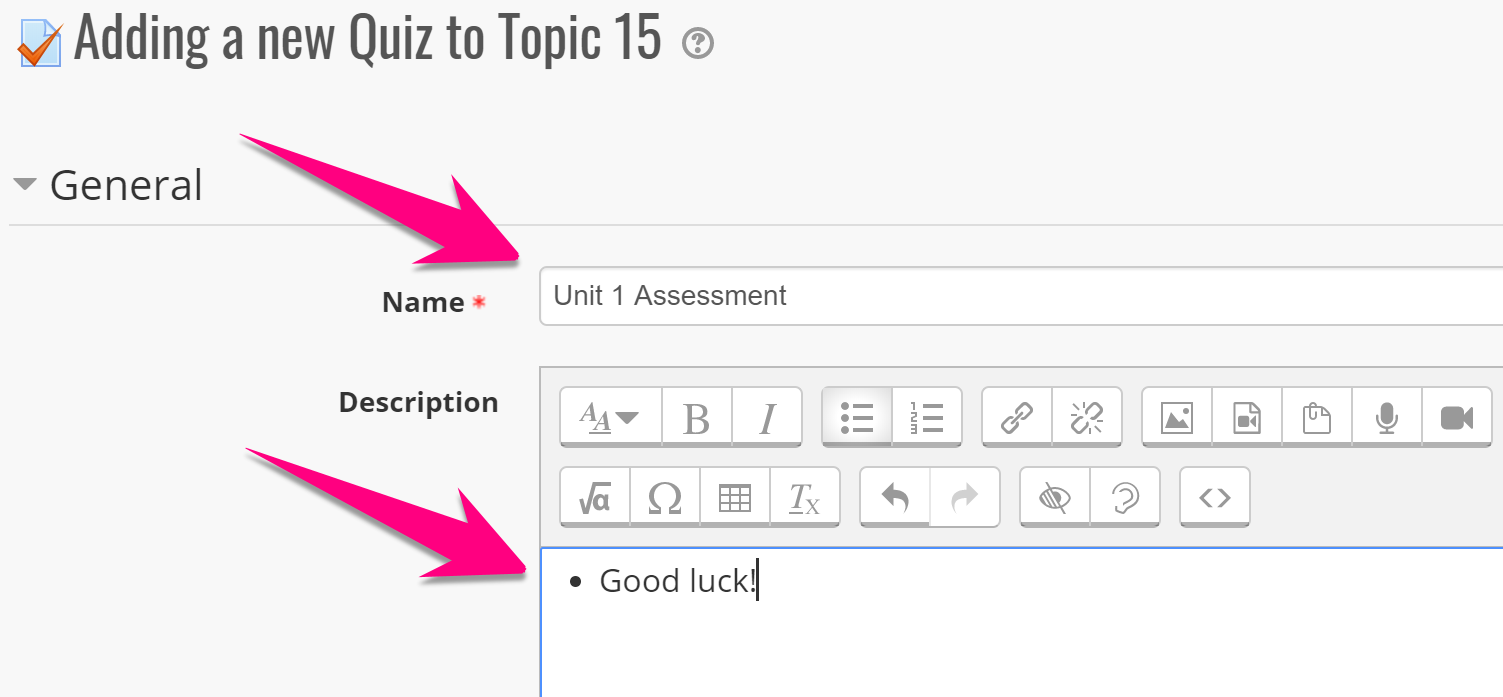
4. Give your quiz a name and you may optionally add some special quiz notes or instructions
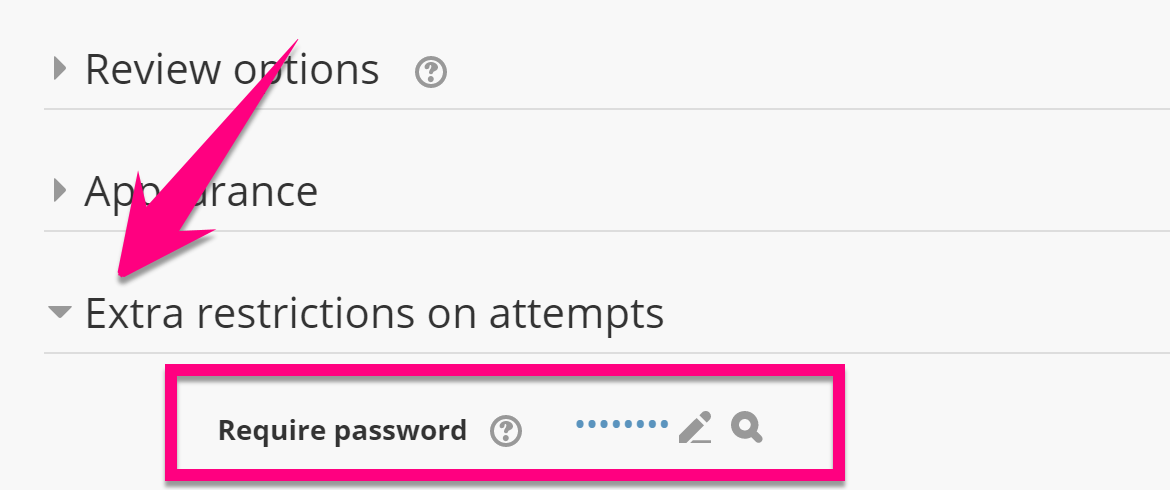
5. Scroll down and add a quiz password in the Extra restrictions on attempts setting
6. Scroll down and hide the quiz from students in the Common module settings
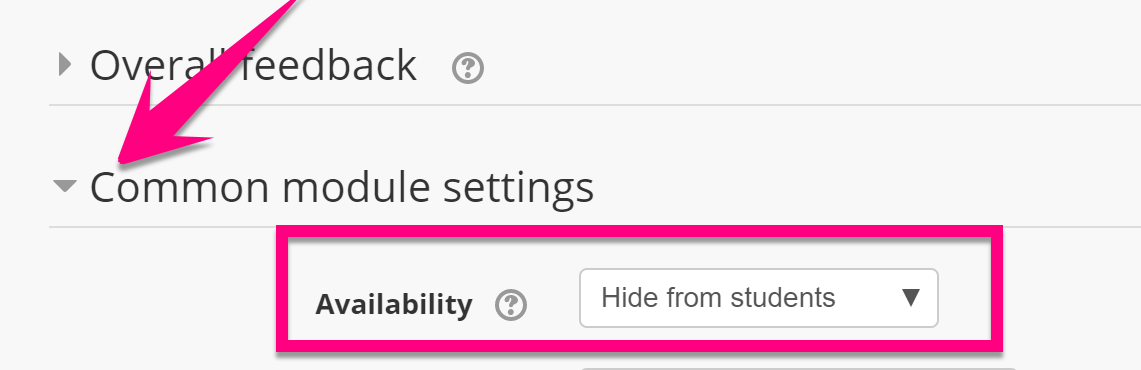
7. Scroll down and click the Save and display button
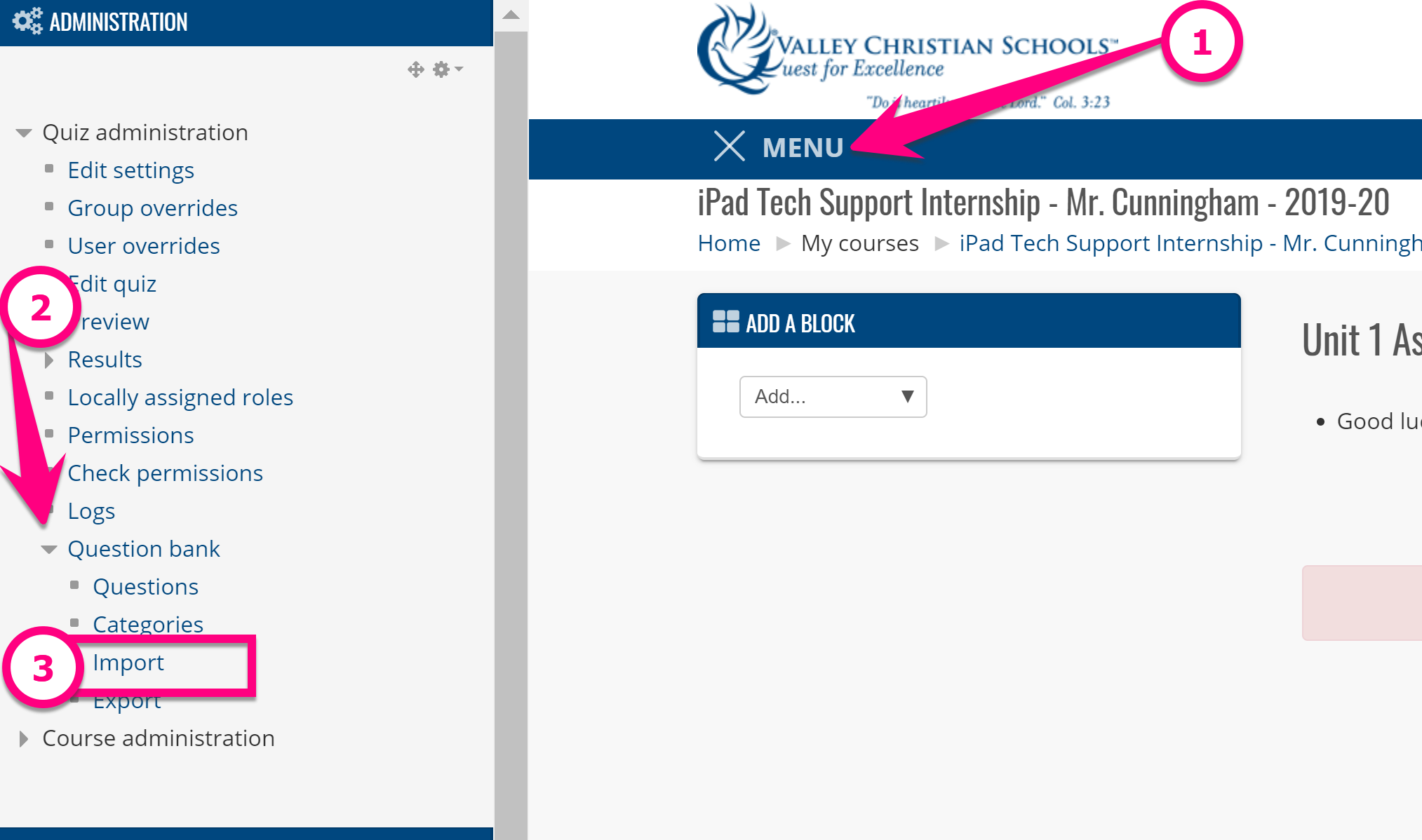
8. Click MENU, then click the arrow beside Question bank, then click Import
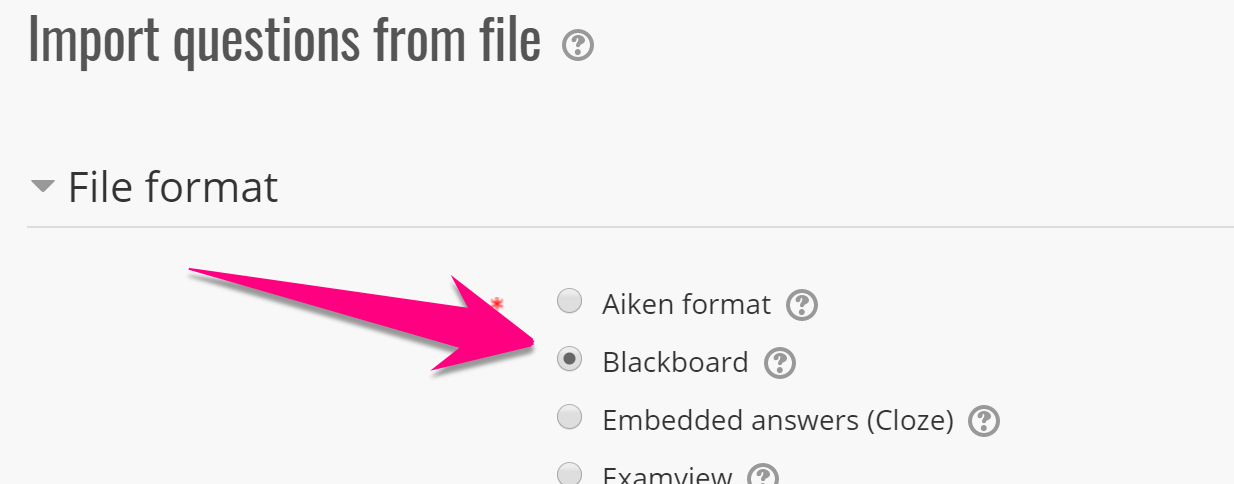
9. Select Blackboard (or Aiken if it's an MS Word text file)
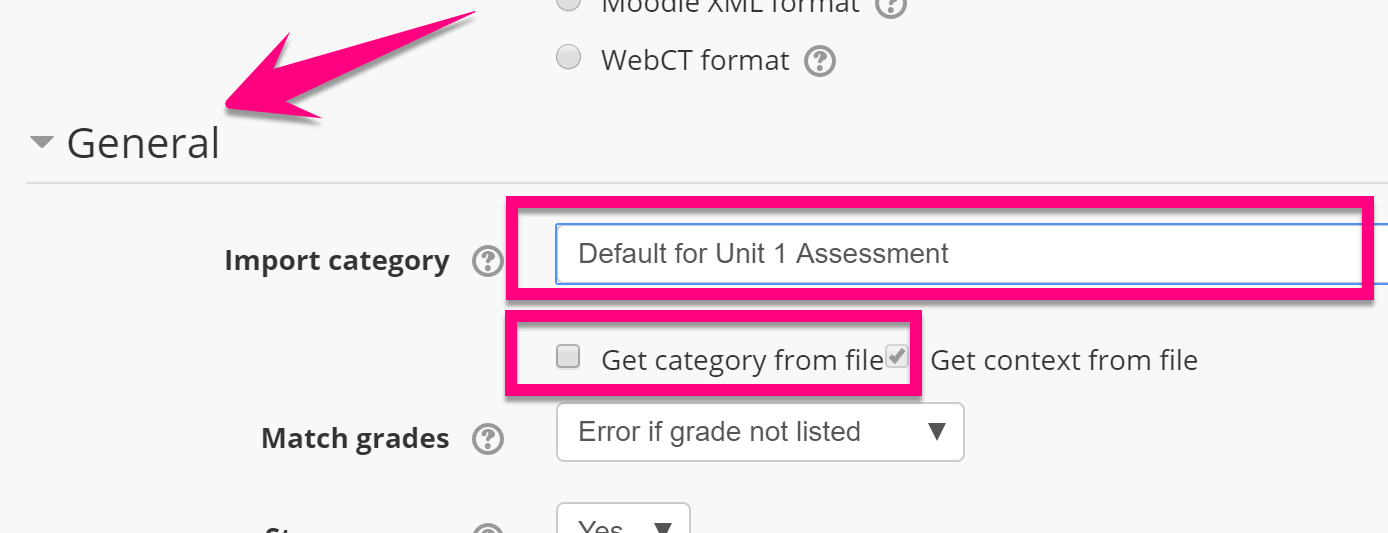
10. Scroll down and change the Import category to the default name that matches your quiz name and uncheck Get category from file
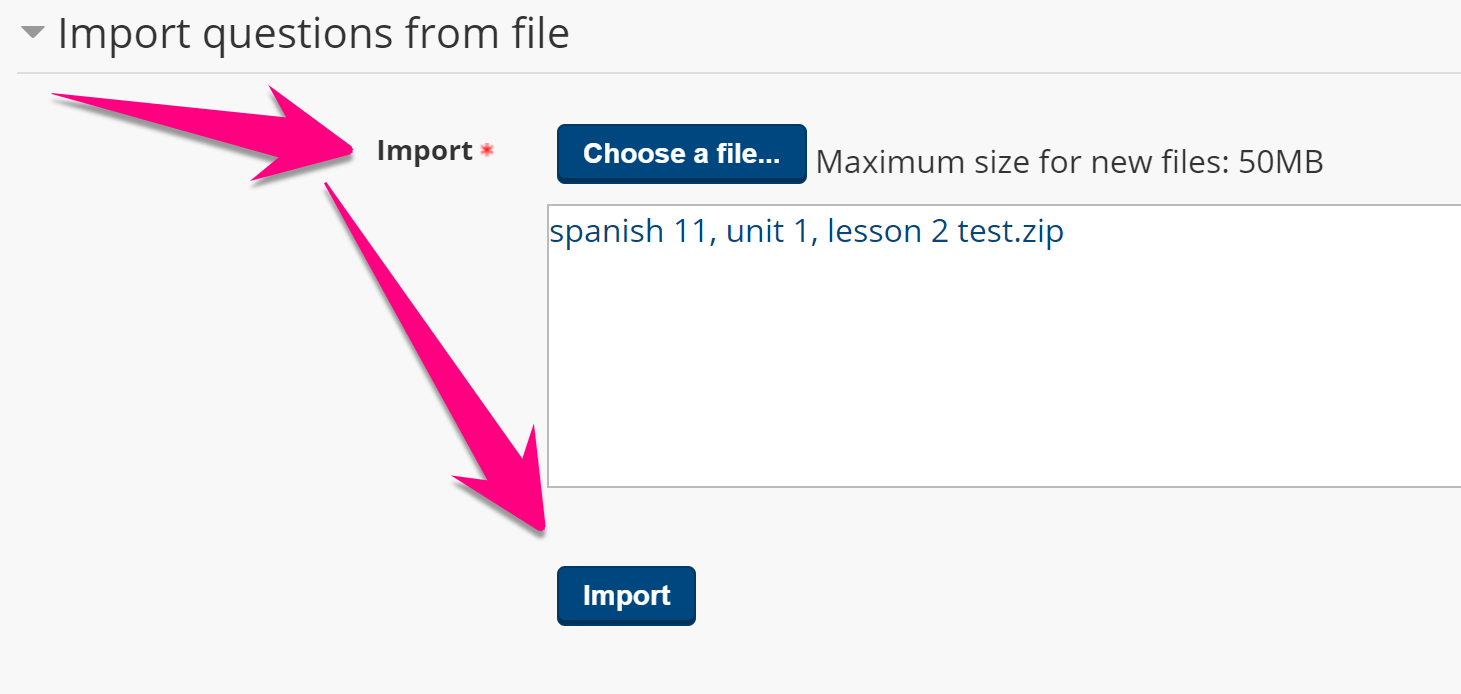
11. Import the test file
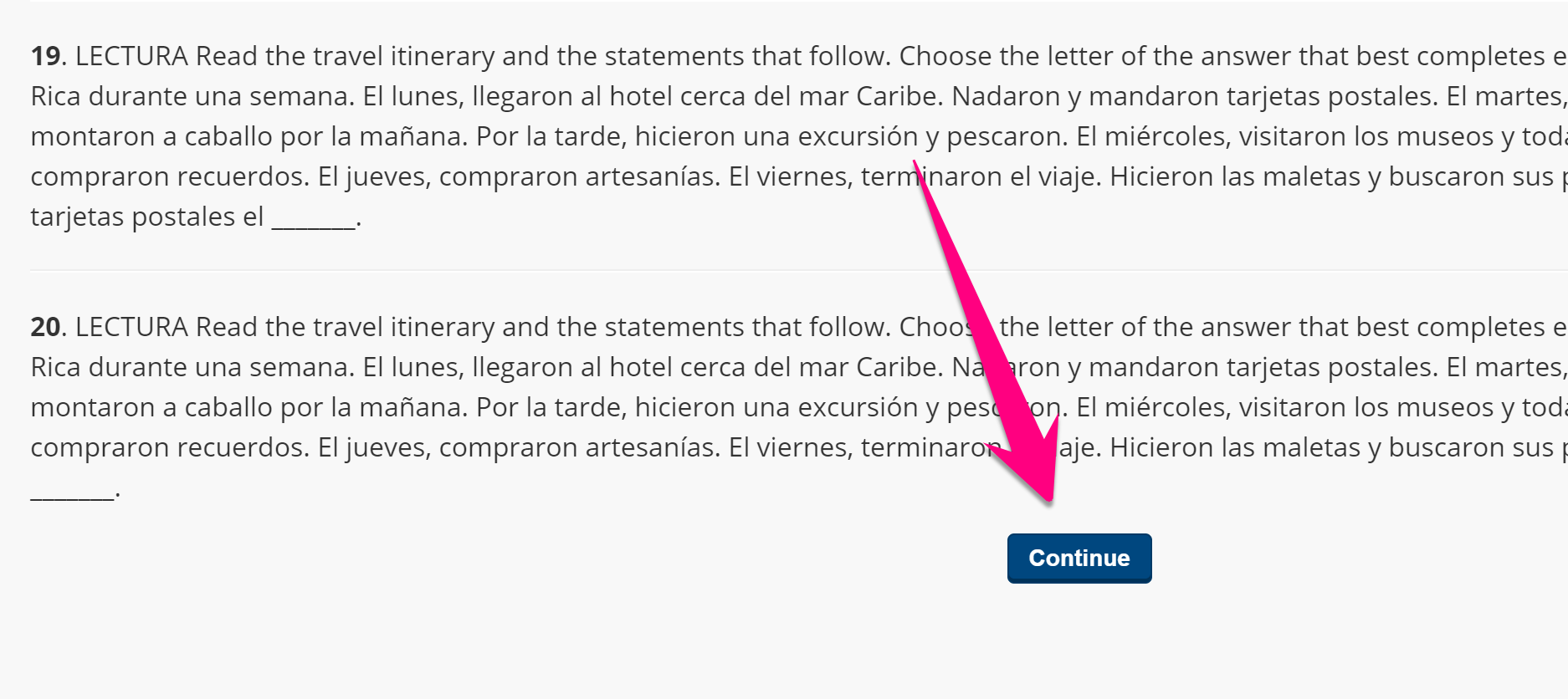
12. Scroll down the page with the preview of your questions and click Continue
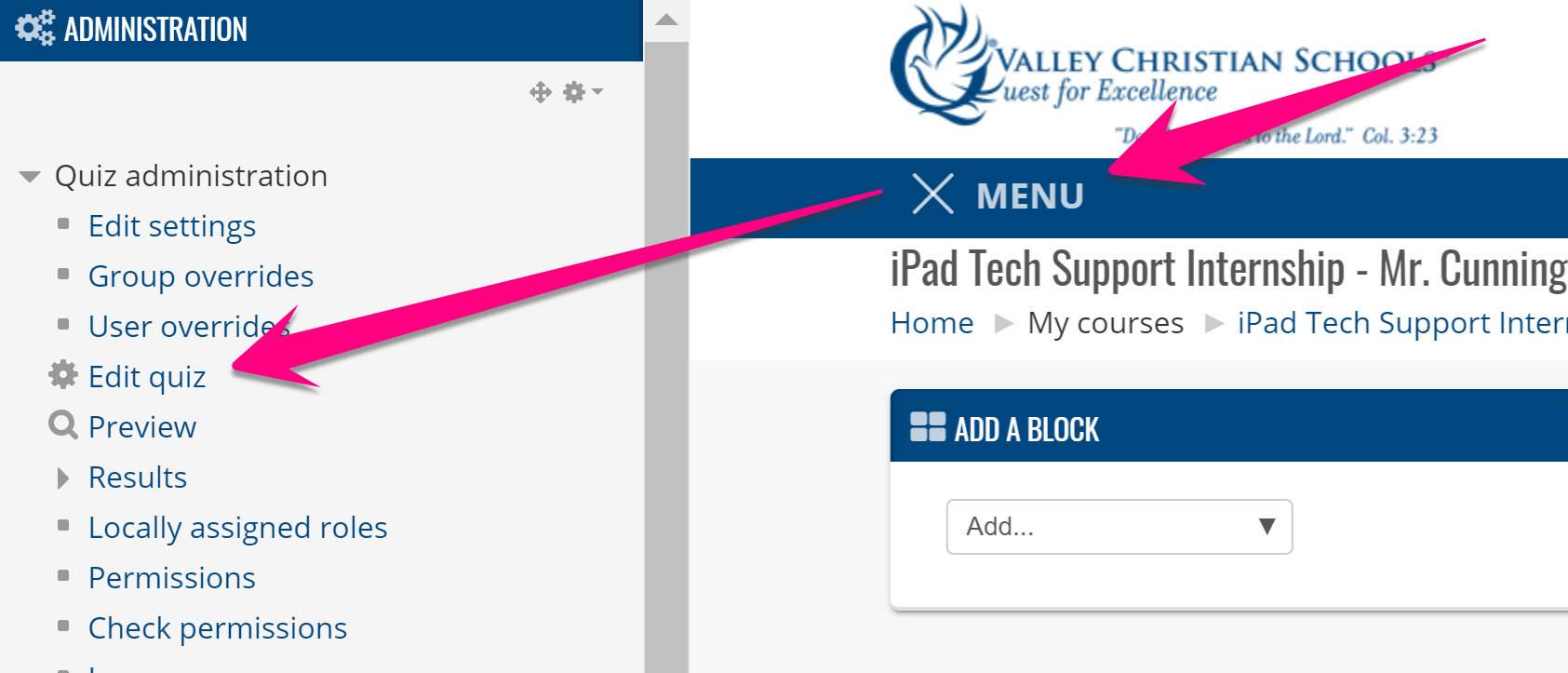
13. Click MENU and click Edit quiz
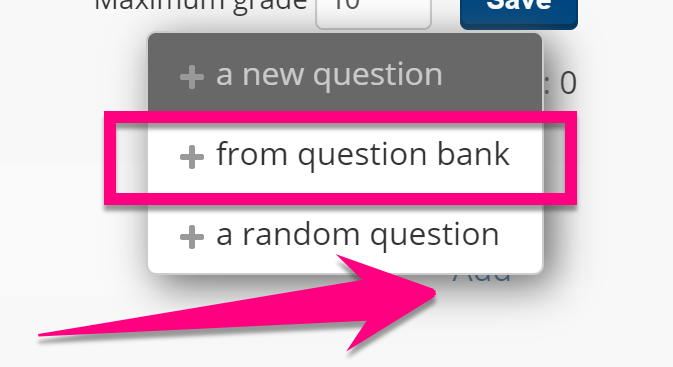
14. Click Add and Add from question bank
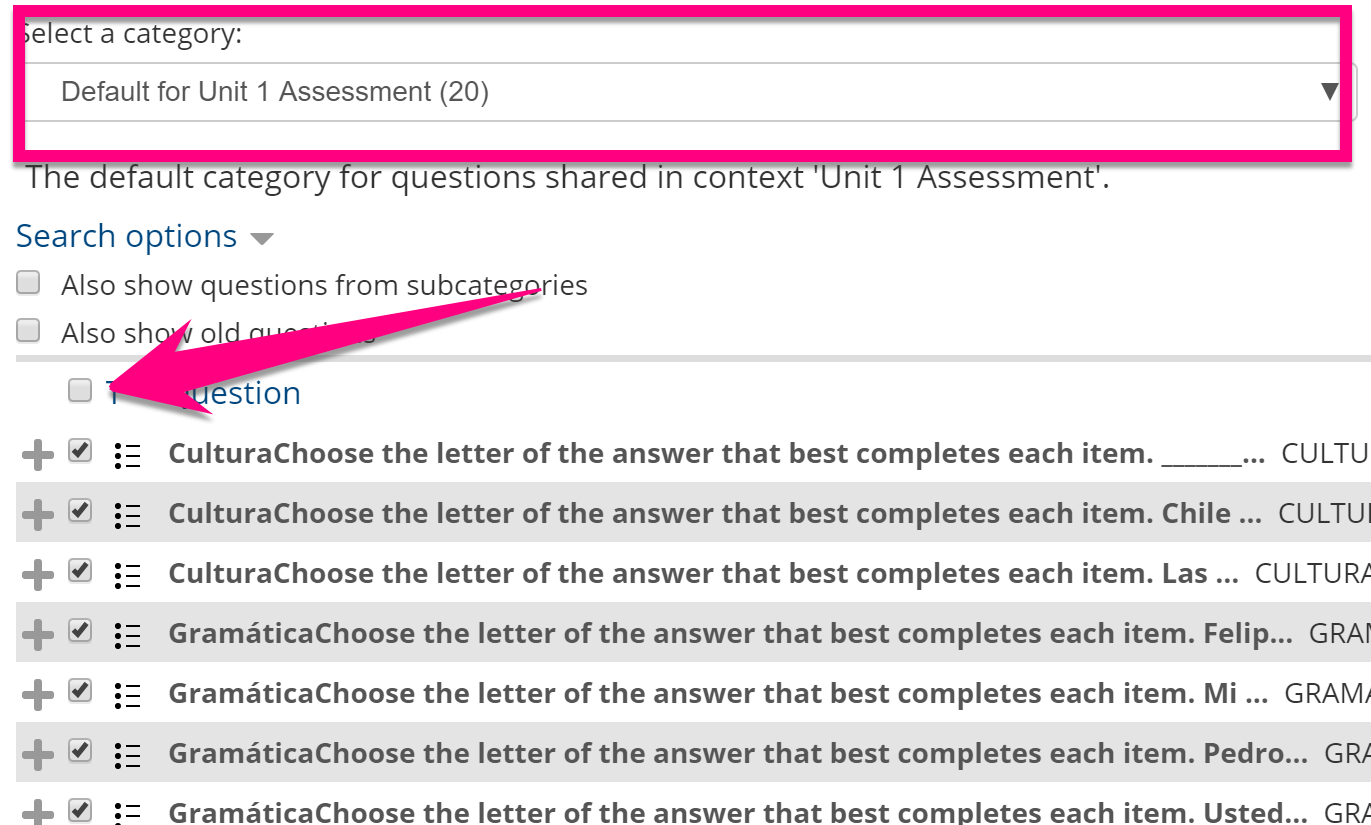
15. Select the question bank for this quiz, then select all questions, then scroll down and click Add selected questions to this quiz
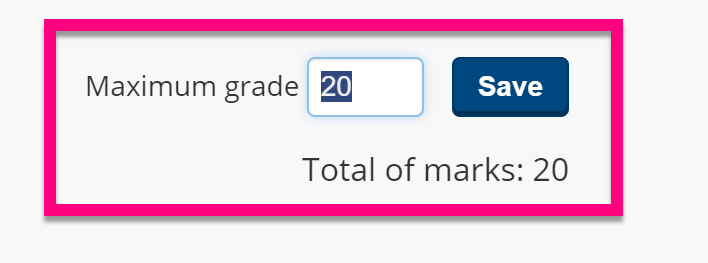
16. Make sure the maximum score and total of marks match up
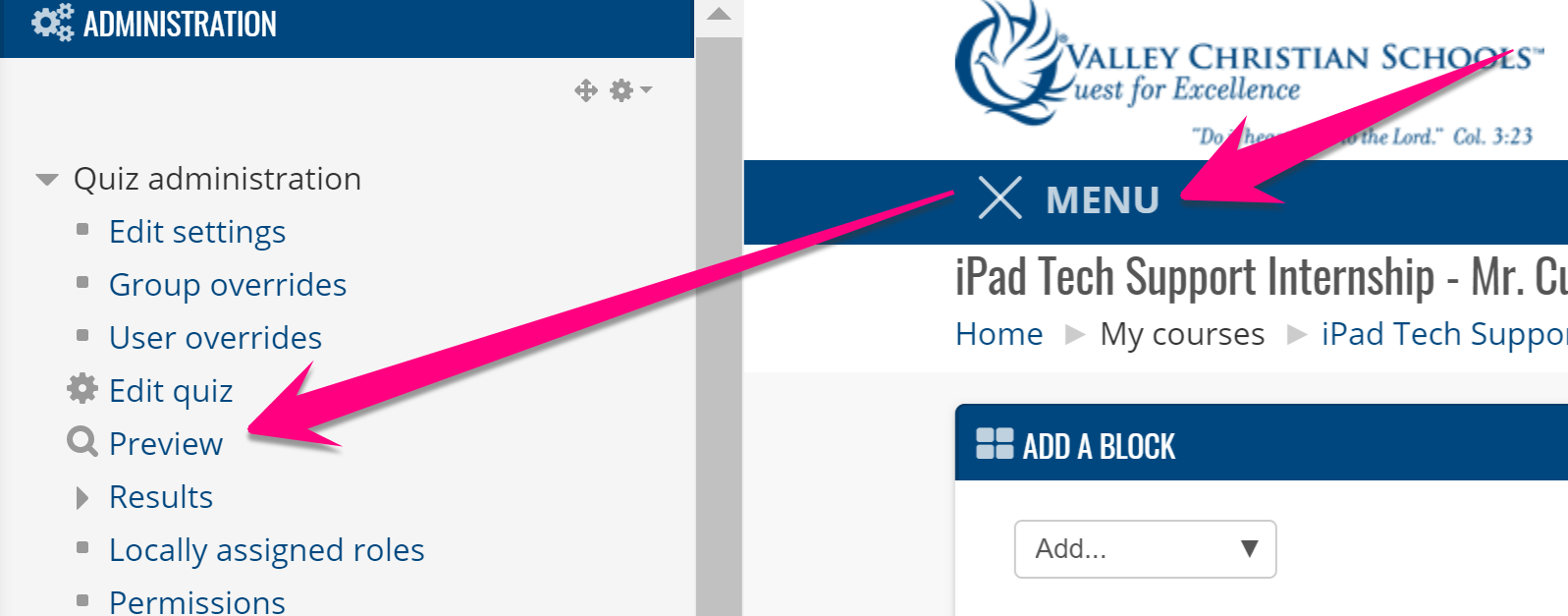
17. Click MENU and click Preview
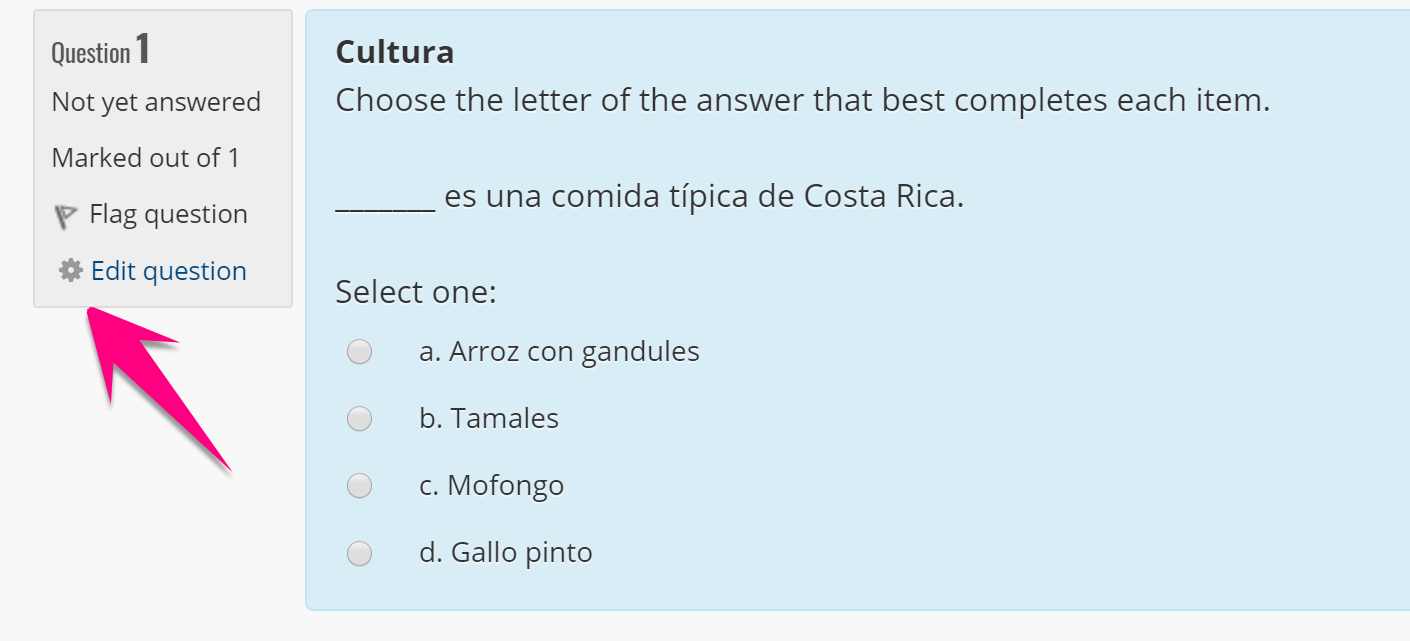
18. Preview your quiz questions and click edit if you want to edit a question
Comments
0 comments
Please sign in to leave a comment.