
1. Open the Creative Cloud application.
The easiest way to open this is to click on the little Creative Cloud icon.
1A. If you are using Windows you should see this icon at the bottom right of your screen near to the clock.

If you do not see the Creative Cloud icon, click the little down-arrow to show additional items.
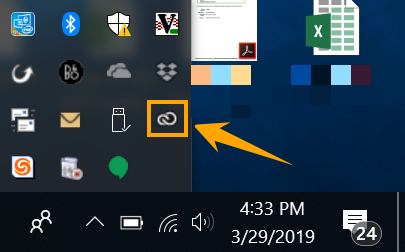
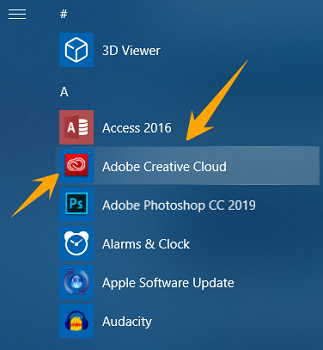
If you do not see the Creative Cloud icon anywhere on your screen you can start the application manually. In Windows you should see the Creative Cloud application on your Start Menu.
1B. If you are using Mac OS you should see this icon at the top right of your screen near the clock.

In Mac OS, if you do not see the Creative Cloud icon at the top of your screen you can find it in the Applications folder.

From this point, all instructions are the same for both Windows and Mac OS.
2. Log in to your Adobe account.
After opening the Creative Cloud application you should see a screen similar to the one below.
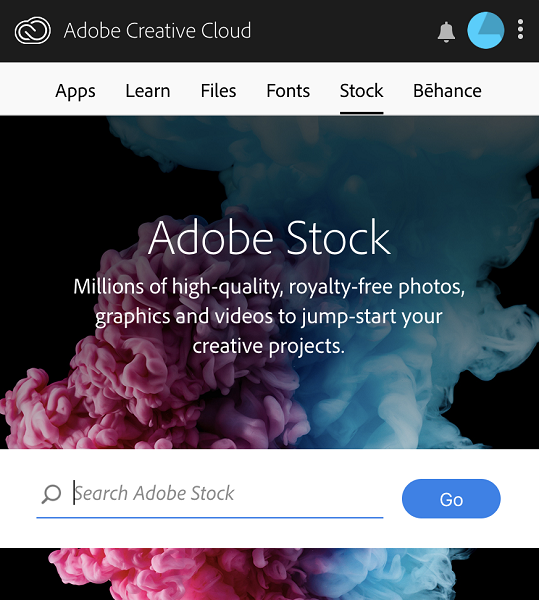
Click on the little blue circular icon in the top right to sign in.

If you are already signed in to Adobe you will see this confirmation that you are signed in.
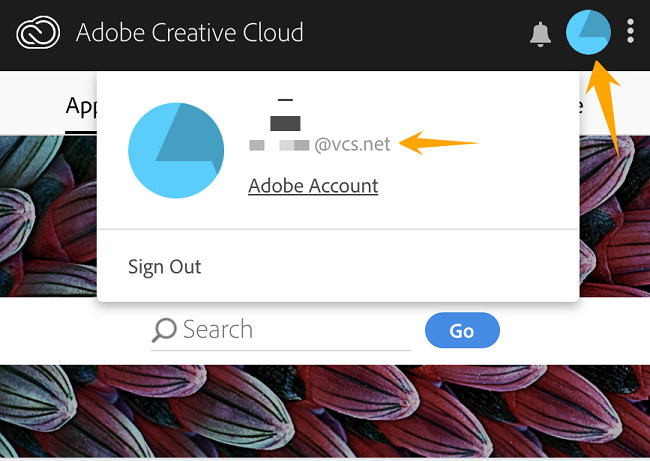
If you see the image above, you are already signed in, and may skip to step 3 below.
Enter your VCS email account in the Username field.

When you press the Tab button or click in the Password field you will be asked which Adobe account you want to use. Choose Enterprise ID.

At this point you will be redirected to a Microsoft login. This is normal and expected. Enter your VCS email account in the Username field.
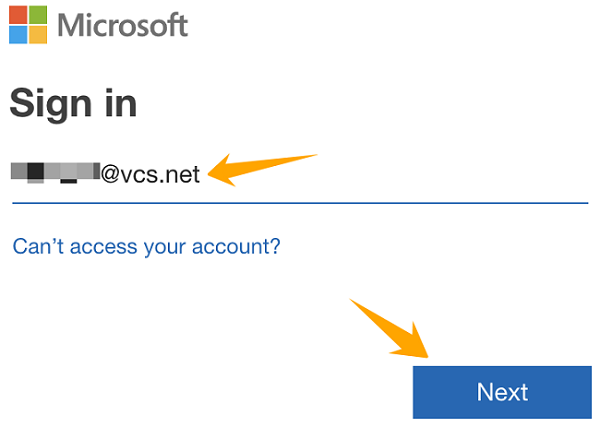
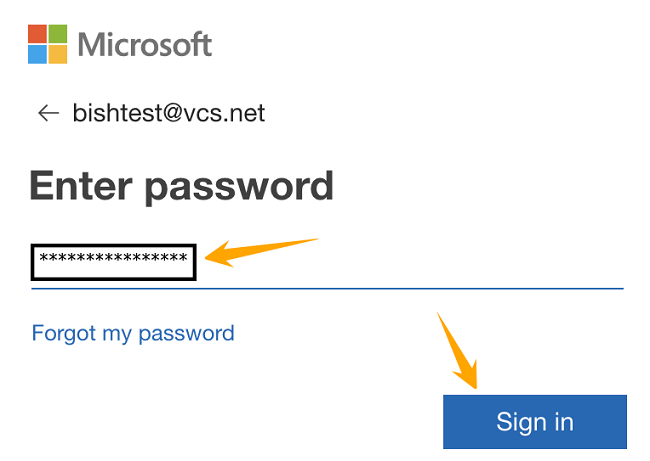
Enter your VCS email password.
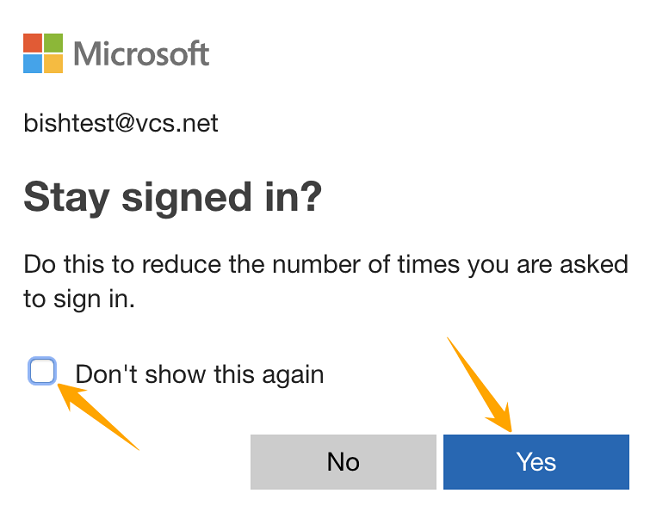
Check the "Don't show this again" checkbox, then choose YES.
3. Install or manage your Adobe applications.
After successfully signing in to Adobe you should see the screen below. Choose Apps to see the applications available to you.
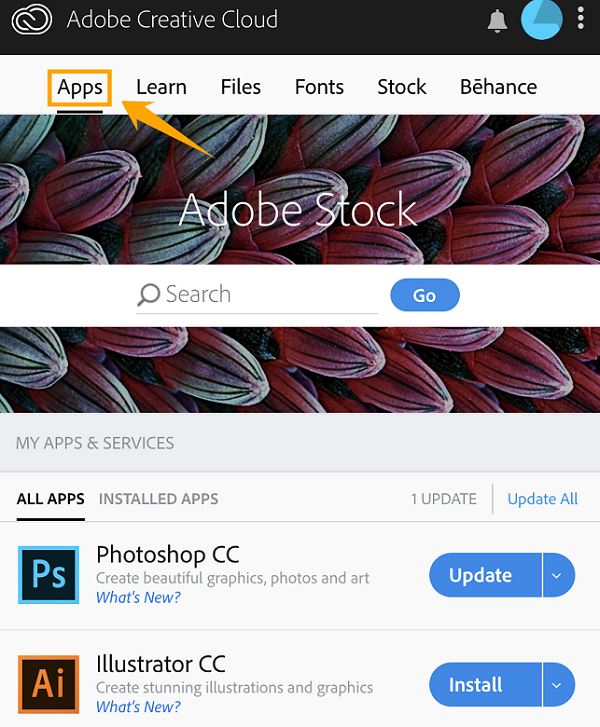
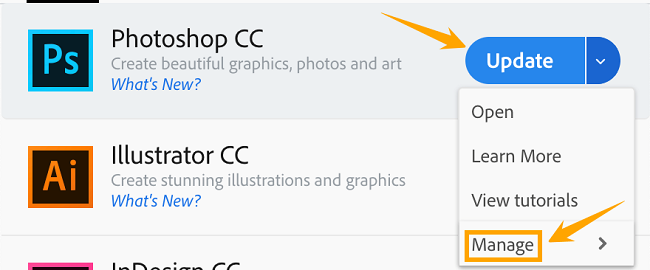
From here you can view, install, update, and uninstall your Adobe applications. You will have to scroll down to see the entire list of available applications.
Click on the little down-arrow beside the applications to see various options. Note that the uninstall option should be available under Manage.
Enjoy your Adobe software.
Comments
0 comments
Please sign in to leave a comment.