
What is it?
When sending an email, by default the message and its contents are not encrypted. If you have a sensitive email that requires encryption, there are two options depending on your client, Encrypt-Only and Do Not Forward. We recommend encrypting any emails that have company confidential information, sensitive personal information or student data e.g. medical releases.
Supported clients - Currently only the following email clients can send encrypted emails. End-user initiated from Outlook for PC, Outlook for Mac, or Outlook on the web. Both internal and external recipients can receive email in Outlook for PC, Outlook for Mac, Outlook on the web, Outlook for Android, and Outlook for iOS, or through a web portal, regardless of whether or not they are in the same Office 365 organization or in any Office 365 organization.
Encrypt-Only - This option is only available for Outlook 2019 and Outlook on the web. When applying Encrypt-Only permissions to an email message, the message including any attachment are encrypted and only the intended recipient(s) can view and access the email. The delivery and viewing behavior may differ depending if the recipient is internal @vcs.net or external e.g. @gmail.com. If the user is external or using an unsupported email client, they will receive an email link to access a secured portal to view and respond to the encrypted email.
Do Not Forward - This option is available for all Outlook clients and Outlook for the web. The Do Not Forward permission will work the same as above and prevent the recipient from forwarding, printing or copying the content in the email.
How to do it?
Windows Outlook
- From Outlook, compose a New email, click Options, then click Permission
 and select Encrypt-Only or Do Not Forward.
Outlook for Mac
- From Outlook, compose a New email, click the Options tab, then Permissions and select Do Not Forward. This is the only encryption method for the Mac version of Outlook.
Outlook for Web ( https://outlook.office.com )
- Compose a New Message, click Encrypt
 and you will be notified the message is encrypted. To change to Do Not Forward click Change Permissions and select Do Not Forward.
How to receive and open it?
- Internal - If you are an internal (VCS Employee) using Outlook, you can view and access the encrypted email from your inbox. Note there will be a
 icon notifying you the email has permissions assigned.
- External - If you send the email to anyone outside of VCS, they can access the secure email in two ways depending on their email address.
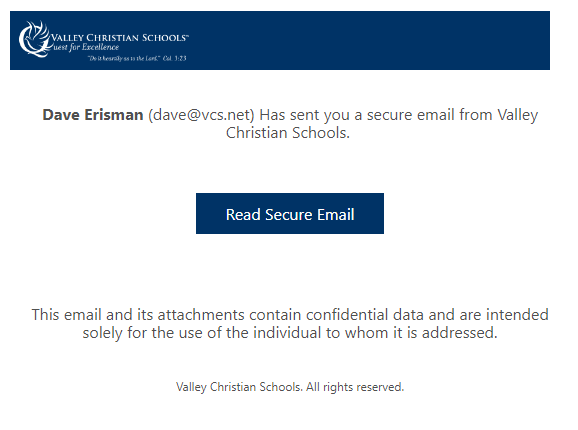
- If the external recipient uses Office 365, Gmail or Yahoo, they can access the email by authenticating with their email account. The email they receive will look like below and to access the email the recipient clicks Read Secure Email:
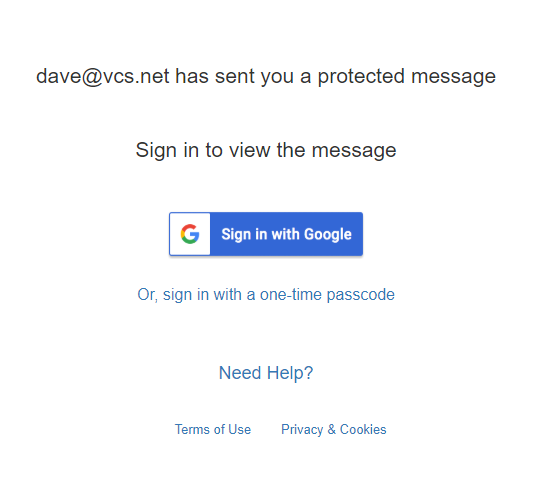
- Next they must authenticate by signing into their email account for validation
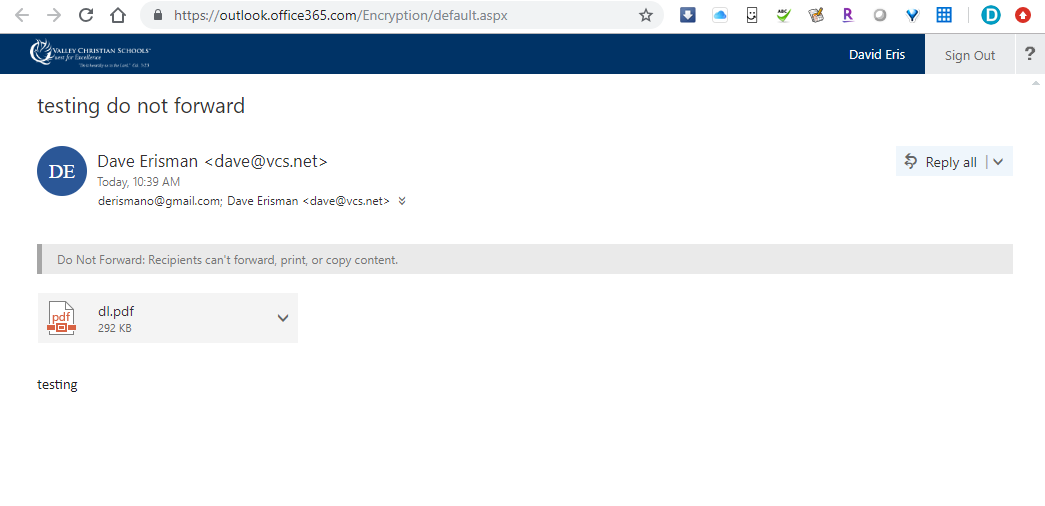
- After signing in, they can access and reply to the encrypted email
- If the external recipient uses Office 365, Gmail or Yahoo, they can access the email by authenticating with their email account. The email they receive will look like below and to access the email the recipient clicks Read Secure Email:
Comments
0 comments
Please sign in to leave a comment.