
The steps below are intended for users who currently use Outlook on their Mac and are migrating from our on-premise exchange server (mail.vcs.net) to office 365.
Once the migration completes email will stop receiving/sending until you follow the steps below to connect the new server. Since we don’t have an easy way to notify you the migration has completed, we will send an email notification to your @warriorlife.net that your @vcs.net email migration has completed. Once you receive the email that your migration has completed, follow the steps below.
1. Launch Outlook, click Tools and select Accounts…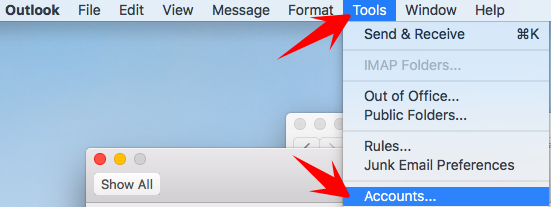
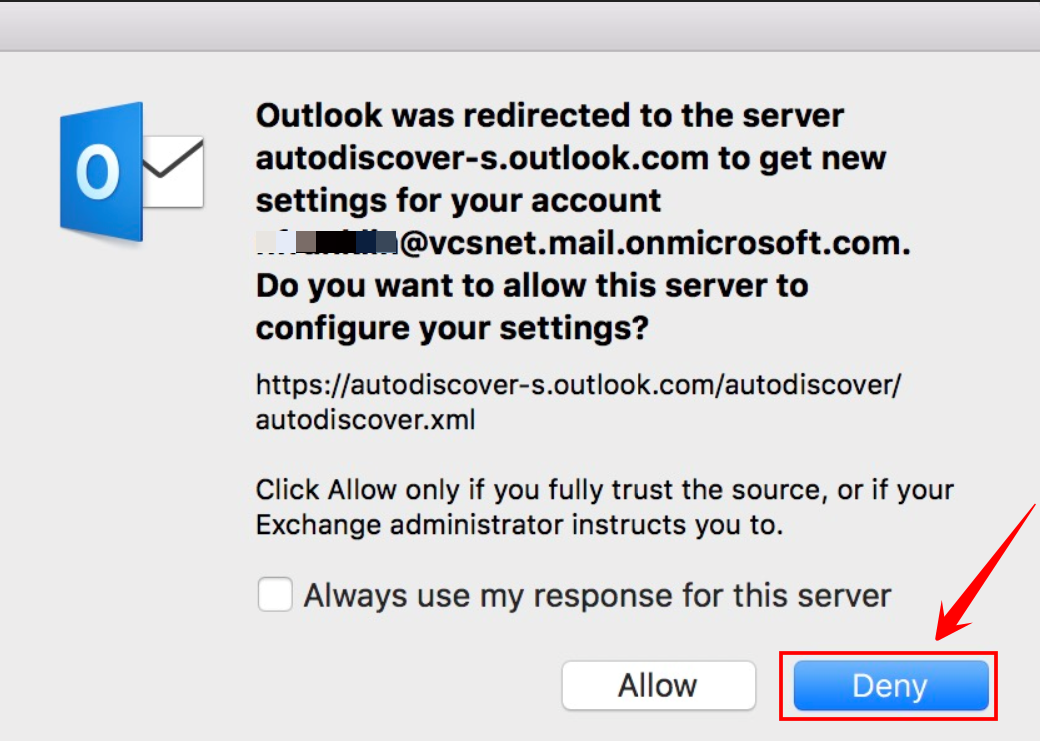
Note: you may receive this prompt below, if so click Deny to stop the prompt so you can continue. However if you receive this prompt when adding the new account make sure to click ALLOW and Always use my response for this server.
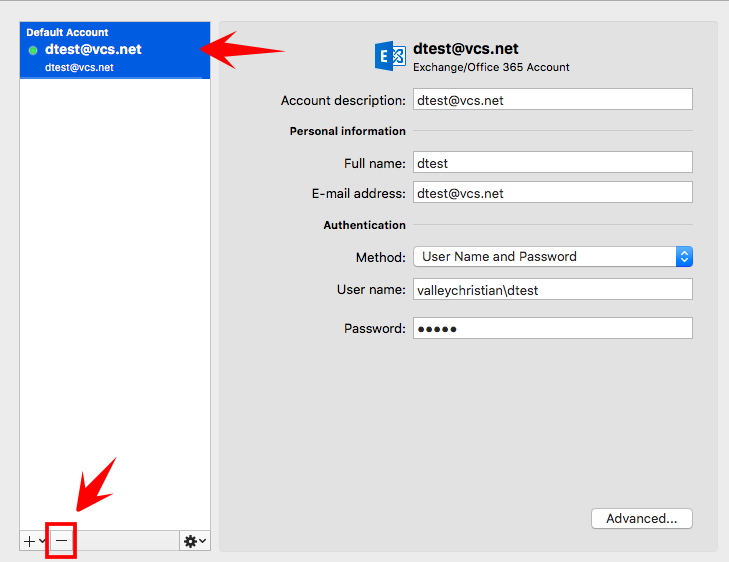
2. Locate and select your @vcs.net account and click the – minus and choose Delete to remove the old Account
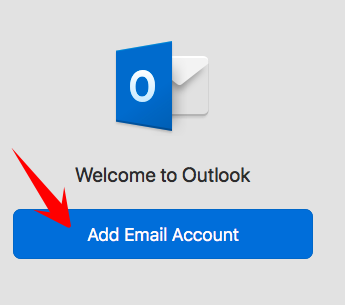
3. Next, click Add Email Account
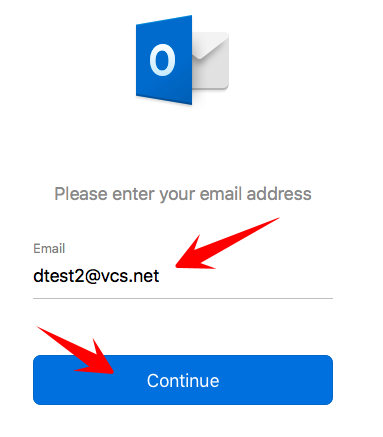
4. Enter your @vcs.net email address and click Continue
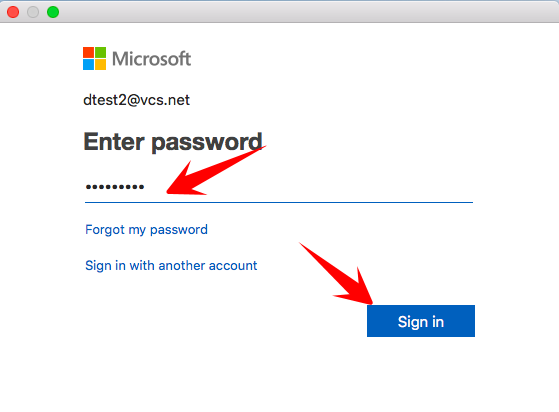
5. Next, enter your email password and click Sign in (note: your password is the same as your previous email password)
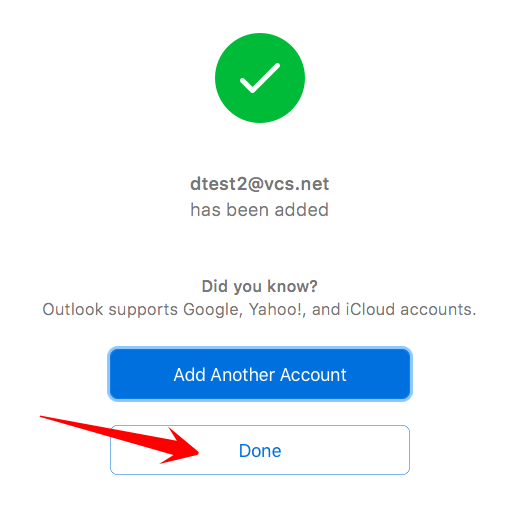
6. Finally click Done to add the account and close the Accounts dialog box
7. Note: Depending on the size of your mailbox it may take some time before all your emails are downloaded
- If you would like to add your @warriorlife.net email to outlook, see this knowledgebase article for instructions: https://valleychristian.zendesk.com/hc/en-us/articles/360014420272-How-to-Add-Warriorlife-mailbox-to-Outlook-for-Mac
Comments
0 comments
Please sign in to leave a comment.