
Windows Outlook
The steps below are intended for Windows users who are migrating from our on-premise exchange server (mail.vcs.net) to office 365 Exchange.
- Once the migration completes, Outlook will automatically notify you to close and restart. The notification will look like below:
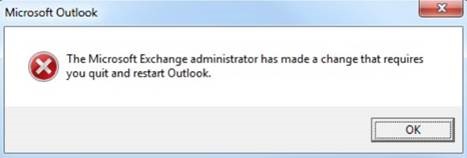
- Once you are notified, you can close and restart Outlook. Outlook will automatically configure the new server for you.
- Next you will be prompted for username and password. The username is your @vcs.net email address e.g. username@vcs.net (sometimes it repopulates with @valleychristian.net this won't work unless you change it to @vcs.net). The password is your email or PC login password.
- It can take sometime for all the mail to sync with the server, but at this time your PC email migration is complete and you can continue to use outlook while your email is downloading.
- To access your email from the web or internet browser go to https://www.office.com and login with your @vcs.net full email address. (mail.vcs.net is no longer valid).
Comments
0 comments
Please sign in to leave a comment.