
Note: Teachers are expected to use Outlook Email as their primary email tool, but should be able to receive Google/Warriorlife email in case they receive a document sharing notification or an email from a student.
To add your Warriorlife mailbox to Outlook:
Let's start in your Warriorlife account first.
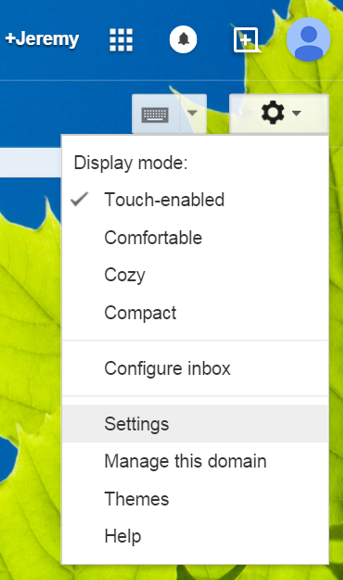
1. Go to http://gmail.com, log-in with your Warriorlife account, and click Settings (gear icon in upper-right) > Settings.
2. Click Forwarding and POP/IMAP from the settings menu.

3. Scroll down and select Enable IMAP, then scroll down further and click Save Changes.

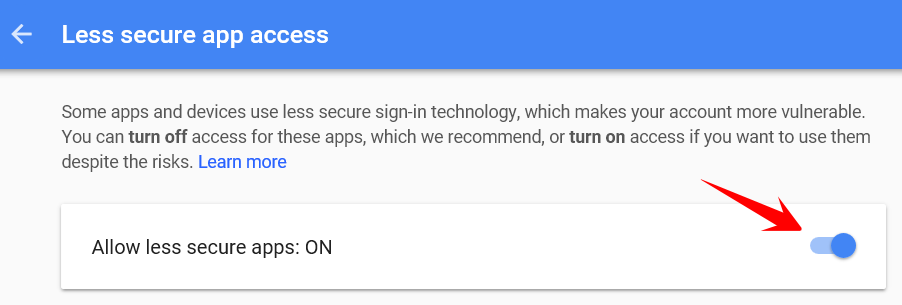
4. Next go to this page https://www.google.com/settings/security/lesssecureapps and allow less secure apps.
Now, open Microsoft Outlook
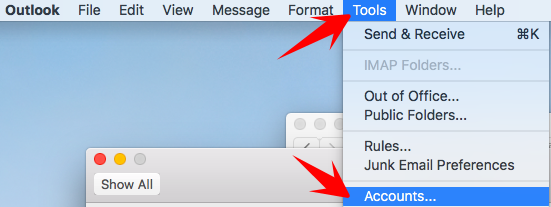
5. Launch Outlook, click Tools and select Accounts…
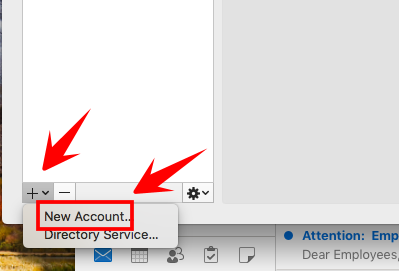
6. Click + and select New Account
7. Type your @warriorlife.net email address and click Continue
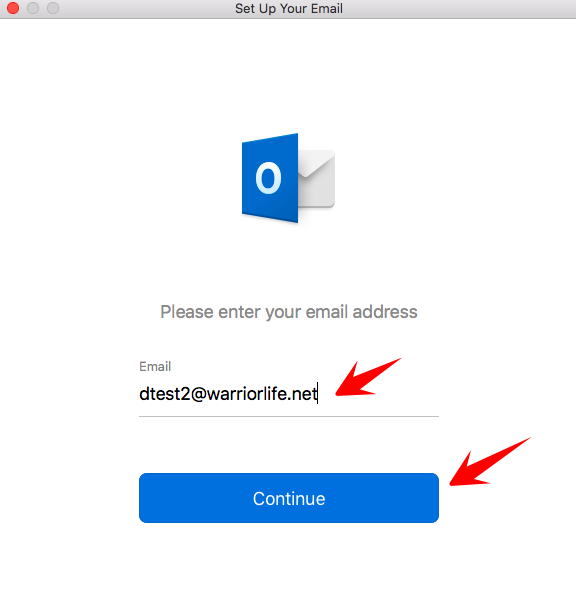
8. Next you will receive a few pop ups. Enter your warriorlife email password and click Allow to give Microsoft Outlook access.
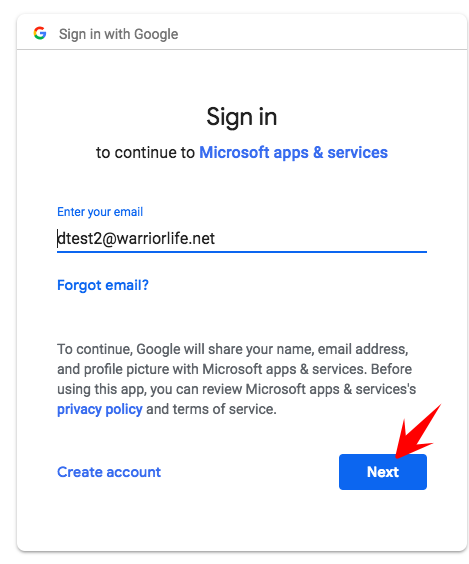
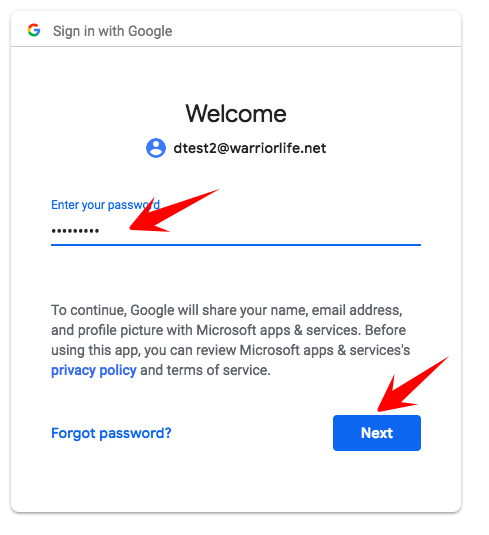
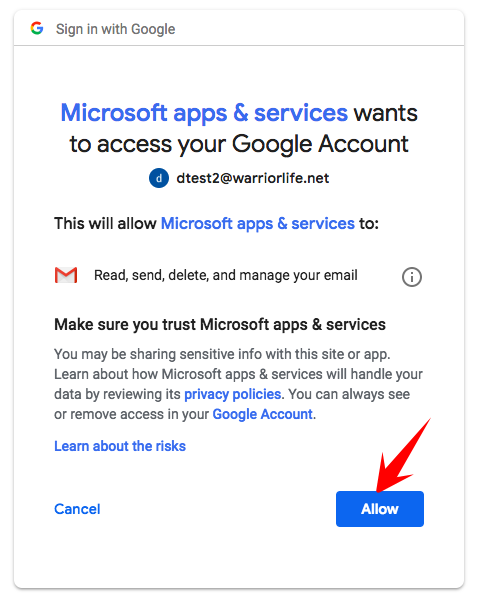
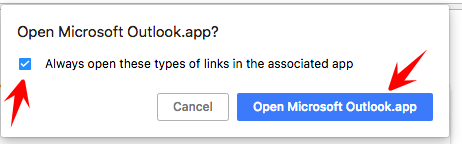
9. Check the box to Always open these types of links in the associated app and then click Open Microsoft Outlook.app.
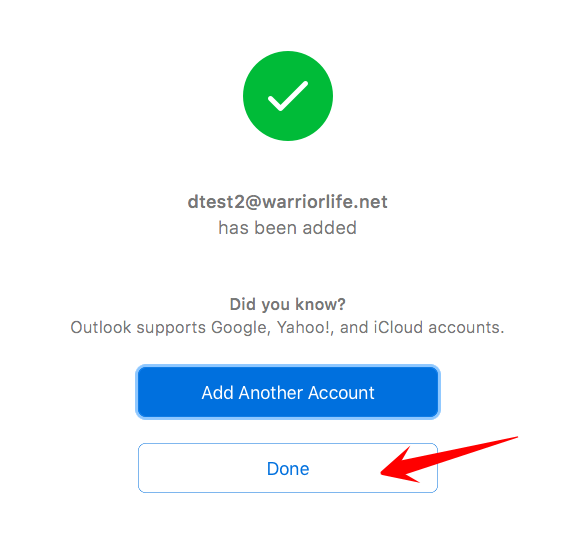
10. Click Done to finish the setup.
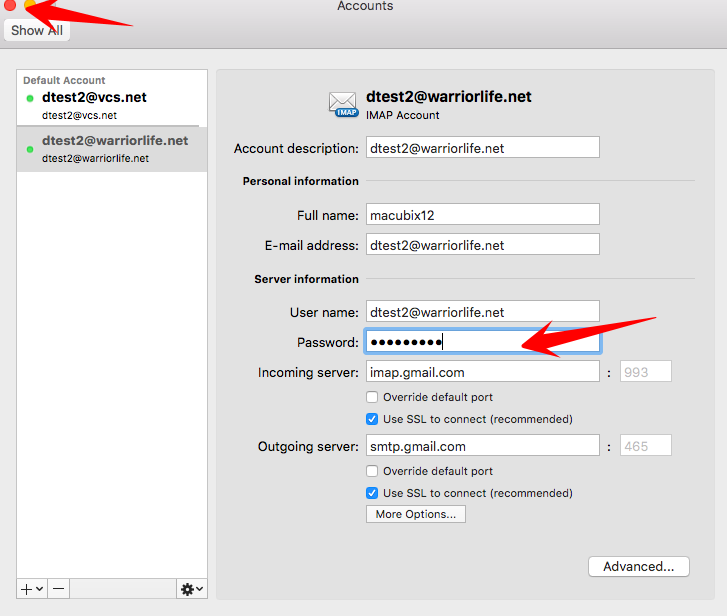
11. Enter your warriorlife email password at the accounts dialog box and then click the Red circle upper left to exit.
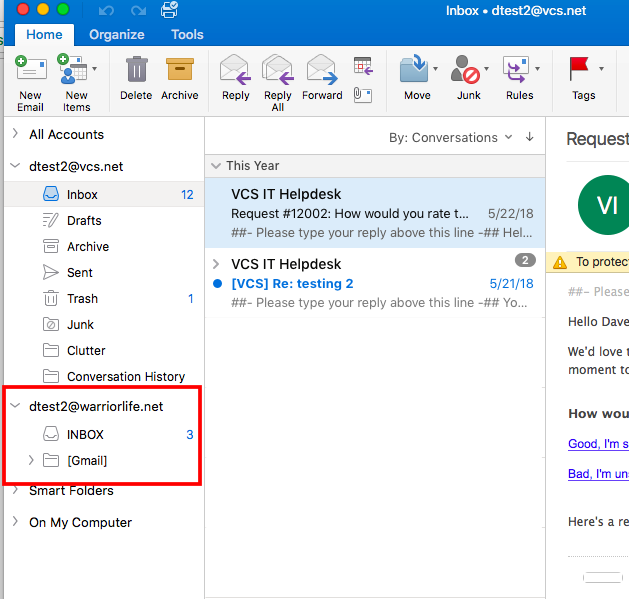
12. Scroll down the list of your Outlook inboxes and you'll see your Warriorlife mailbox. You can now send an receive Warriorlife email from Outlook.
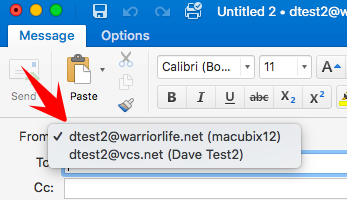
13. When sending a new message you can specify which account to send from. When replying to an email from Warriorlife, outlook will automatically reply from the account the message was sent.
Comments
0 comments
Please sign in to leave a comment.