
The Respondus LockDown browser prohibits students from doing anything on their iPads other than taking a quiz until they submit the quiz. This includes taking screenshots, copy/paste, web browsing, using other Apps, etc.
To Require the LockDown Browser for a Moodle Quiz:
1. Click Turn Editing On
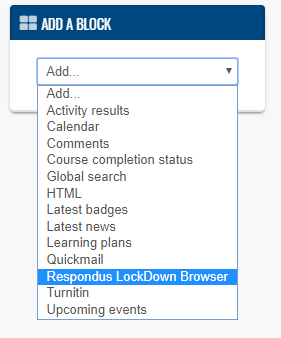
2. Click Add a block > Respondus LockDown Browser on the upper left side of your page
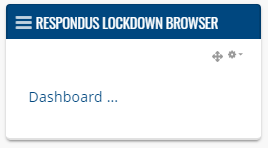
3. Click the Dashboard link from the Respondus LockDown Browser block:
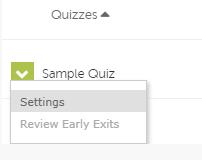
4. Click the drop-down arrow beside the quiz you want to require the LockDown browser for and click Settings
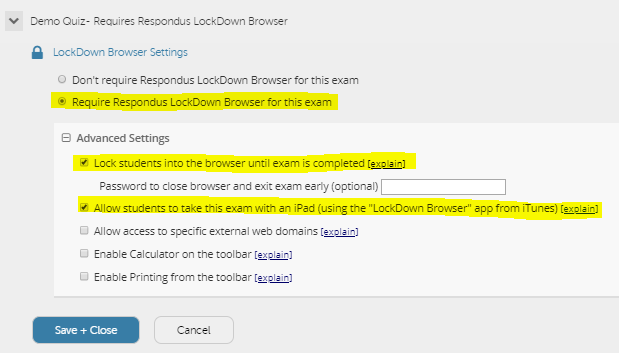
5. Select Require Respondus LockDown Browser for this exam. Then click Advanced Settings and select Allow students to take this exam with an iPad. Then click Save + Close.
6. Go back to your class home page and you'll see that the quiz title now indicates that the LockDown browser is required.

Comments
0 comments
Please sign in to leave a comment.