
Students should follow the steps below to use LockDown Browser on a Moodle Quiz:
1. Log into Learn and select the course and click on the Quiz link.
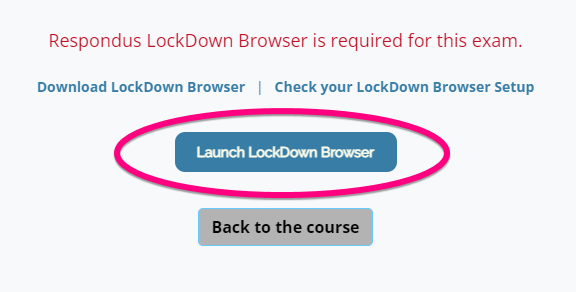
2. From this screen, click the Launch LockDown Browser button
3. The quiz will open in the LockDown Browser App
4. Choose Yes to all prompts
5. Once a quiz has been started with LockDown Browser, you cannot exit the quiz until the Submit Quiz button is clicked
Troubleshooting
- If the App freezes during the quiz, force restart the iPad and resume the quiz
- If the App freezes after submitting the quiz, force restart the iPad
- Click here to see how to force restart your iPad
Comments
0 comments
Please sign in to leave a comment.