
The VCJH campus currently uses Apple Classroom to manage classroom iPad use in order to help ensure students stay on task. Sometimes students have difficulty connecting to a particular classroom. This article shares both the minimum requirements as well as the steps required for students to connect to Apple Classroom.
The minimum requirements for Apple Classroom to work and the conditions for connecting to a classroom are as follows.
Student iPads must:
- be minimum of 4th generation (as of this article creation date)
- have iOS version 10.3 or later
- connect to the same WiFi network as the instructor
- have bluetooth turned on
- be within close proximity to the instructor iPad in order to add a class
Connecting to a classroom
In order for a student to connect to a classroom, the instructor must launch the Apple Classroom app and press "Add" to add a student (this step assumes the instructor has already created their classroom).
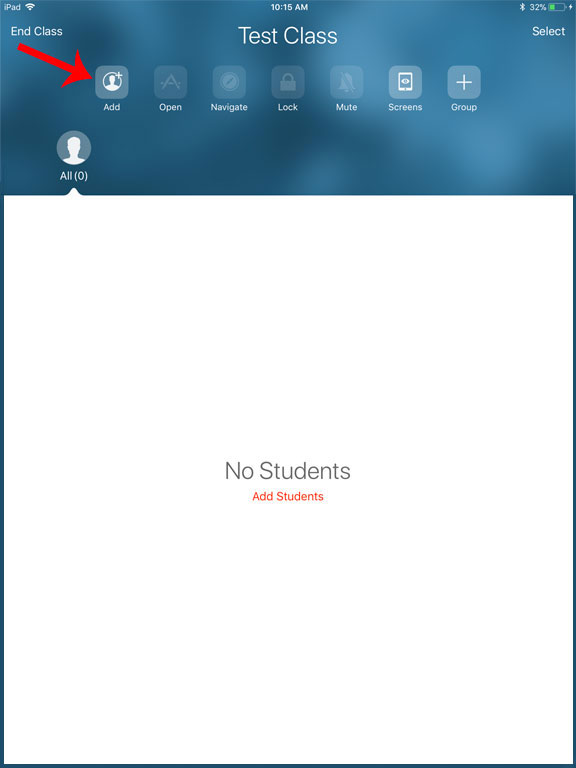
The student wishing to add their iPad to the class must be physically in the classroom. The student must have Settings open on their iPad. Once the instructor presses the Add button, the student should now see a "Classroom" link located in Settings, just below the Bluetooth button. At this point, the student should touch Classroom and under "New Class Invitation," touch the blue link with the same title as the class they wish to add. The instructor will see the following screen on their Classroom app.
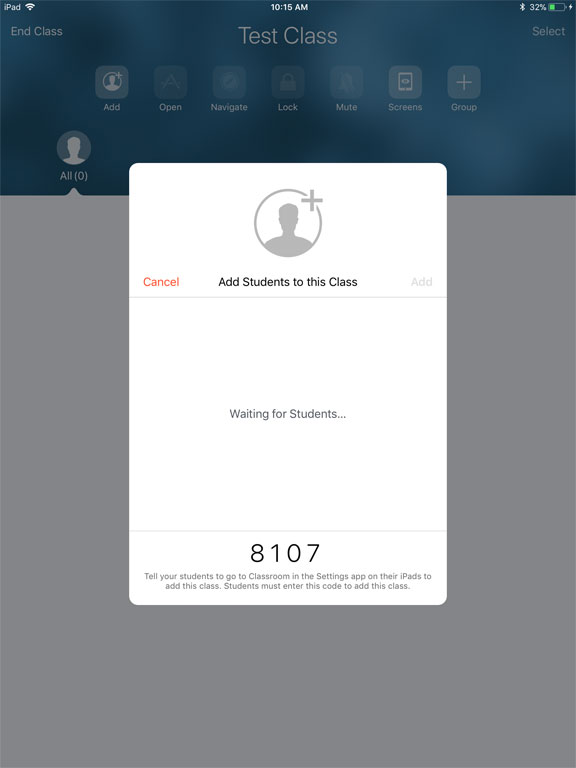
The student will now be presented with a pop-up screen asking for the 4 digit class code, which the instructor will provide. The student will enter the 4 digit class code and press Add.
Once that's done, the instructor will need to confirm the student's request by pressing the Add button on the Apple Classroom app on their own iPad. The student is now enrolled in the class.
Comments
0 comments
Please sign in to leave a comment.