
To continue access incoming mail and to send new mail during a power outage, VCS faculty and staff can use the Emergency Inbox feature of our ProofPoint mail security product. Follow this link to learn how to access the Emergency Inbox.
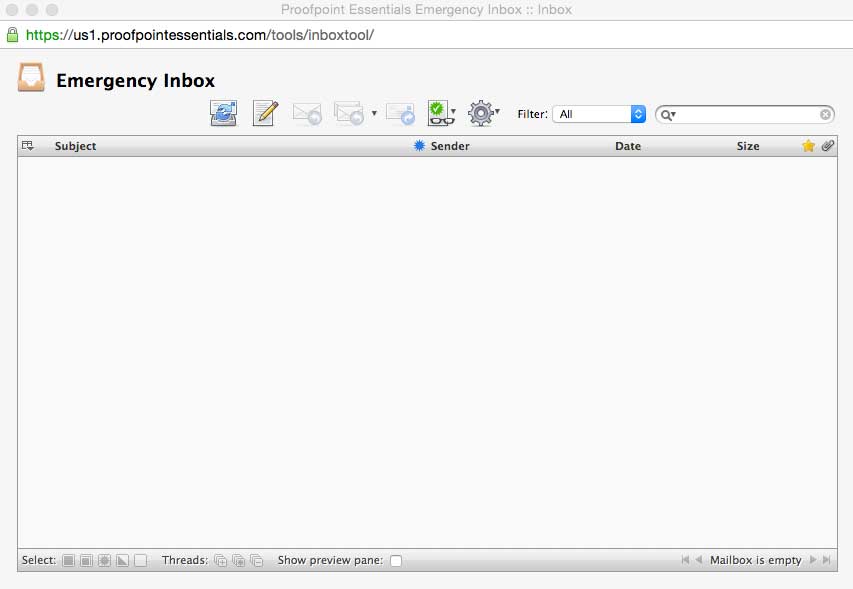
To begin this quick tutorial on using the Emergency Inbox, lets get familiar with the interface.
This is what the interface looks like once you launch the Emergency Inbox.
Here is a breakdown of the toolbar. Notice the minimal options- this is meant to be used only in an emergency so it lacks many features. Lets go through the icons.
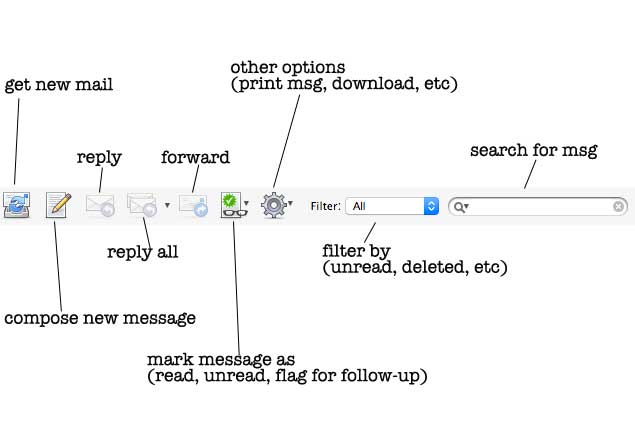
Working from left to right, we have the get mail button. This is used to refresh the screen in order to display new incoming messages. Next is the compose new message button. This is the button used to draft a new message. The reply and reply all buttons are currently grayed out because I don't have any incoming email at the moment, so there's nothing to reply. Similarly, the forward button is also inactive. Next is the mark message as button which allows you to mark a message as unread or even flag for follow-up. Next is the other options button, which allows you to do things like print an email, or download the message. If you have a lot of inbound mail (assuming power is off for an extended period of time, or during the peak of the workday, for example) you can use the filter button and search field to sort through your inbound mail if, for example, you're looking for a particularly important message.
COMPOSING A NEW MESSAGE
Once you're ready to draft a new message, clicking the compose new message button produces this screen.
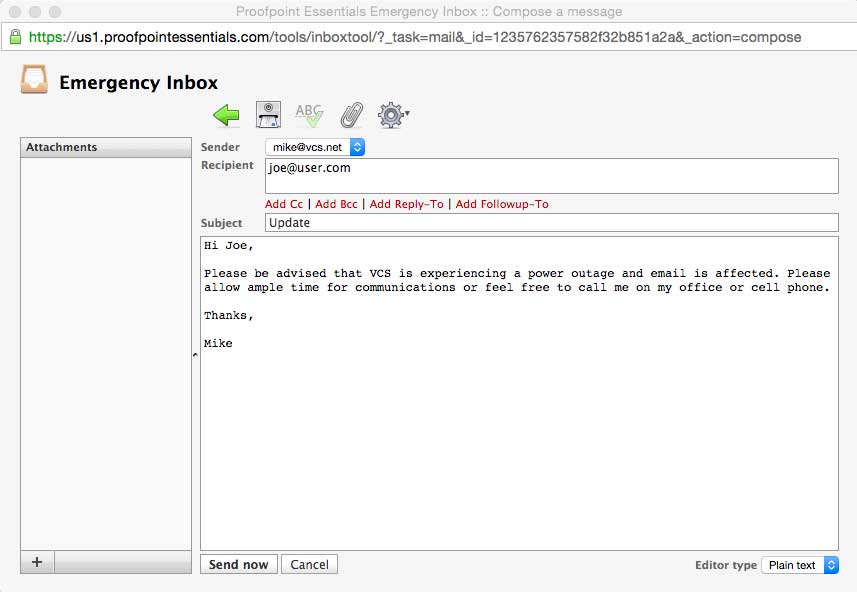
The interface is straightforward. It has limited options, but should be familiar to users.
Comments
0 comments
Please sign in to leave a comment.