
After receiving a refreshable real-time budget report from FABS, and after opening this report in Excel, you might see a message come up that says you need to install the ODBC drivers to be able to refresh the data in the report. Installing the ODBC drivers is a two-step process, and while it is complicated, it does not require administrative privileges on your computer. As always, the Technology Office will be happy to help you with this.
Step One: Setting up the ODBC data source
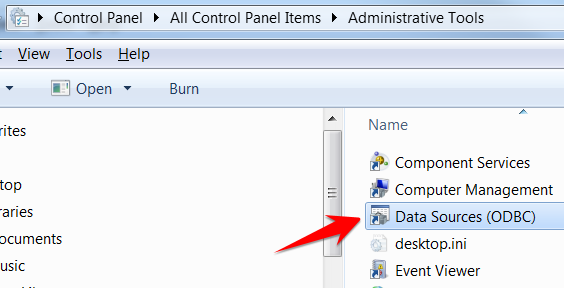
Open up Data Sources applet. This is found under Control Panel > All Control Panel Items > Administrative Tools.
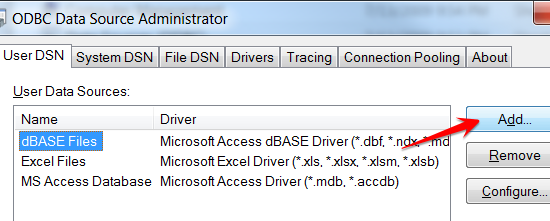
We want to Add a new data source.
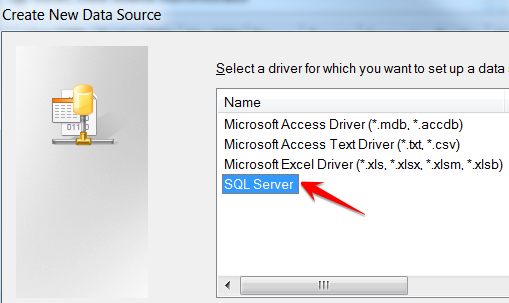
Next, select SQL Server.
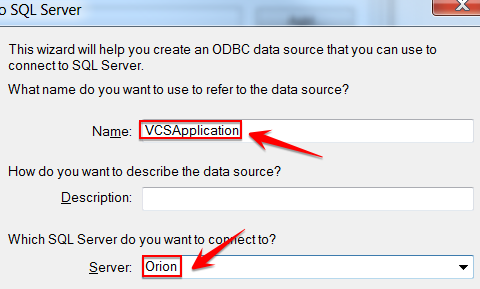
The name of the data source should be VCSApplication, and the SQL server should be Orion. You will have to manually type in both of these names.
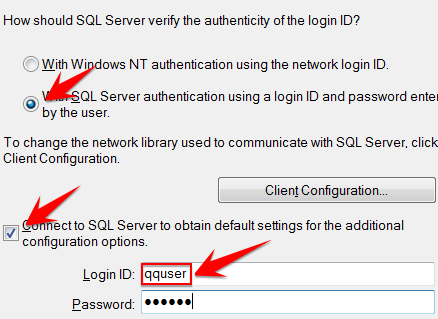
Select the box for With SQL Server authentication, and the box for Connect to SQL Server. The Login ID and password are both "qquser."
On the next screen uncheck all four check-boxes that are not grayed out.
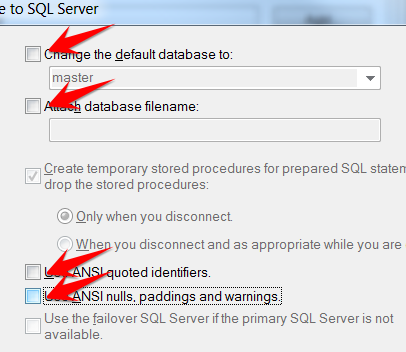
On the next screen make sure that all of the check-boxes are unchecked, then click on the Finish button. Click the OK button on the next screen. You will be taken back to the ODBC Data Source Administrator screen. The new data source should look like the image below.
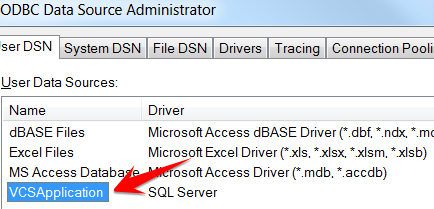
Click OK, then close the Control Panel and any other open windows. This is the end of Step One.
Step Two: Adding the ODBC connection to the report
Open up the refreshable real-time report. It should open up in Excel. At the top of the screen click on the DATA tab and select Properties.
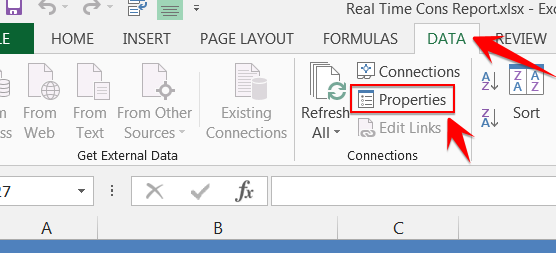
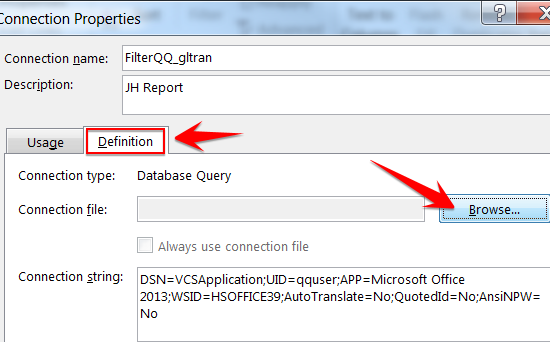
In the Connection Properties window select the Definition tab, then click on Browse.
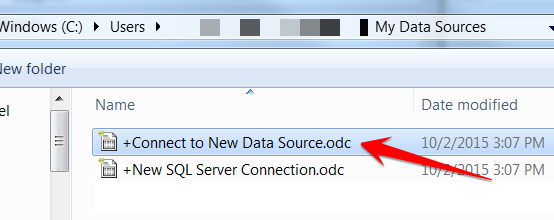
In the window that opens double click +Connect to New Data Source.odc.
Select ODBC DSN, then click Next. On the next screen select VCSApplication, then click Next. This is the data source we created in Step One. If prompted, use qquser for both the name and password.
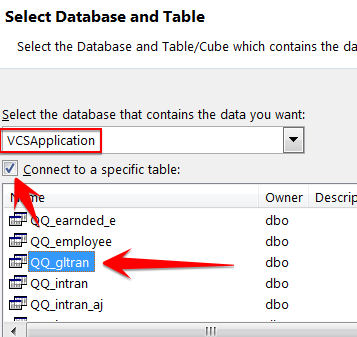
On the next screen select the database VCSApplication, and check the option to Connect to a specific table. The table we want is QQ_gltran. QQ_gltran is toward the top, but it's easy to miss because there are a lot of tables to scroll through.
After selecting these items click on Next.
On the next screen make sure the settings are as follows: File Name = VCSApplication QQ_gltran.odc, and all check-boxes are unchecked.

Click Finish. Click OK on whatever windows are still open and return to Excel.
To check to see if this connection is working, select the Data tab at the top of the screen, then select Refresh All. There is a large amount of data to be refreshed, so it is normal for this to take a couple of minutes, and there should be a progress bar at the bottom of Excel that displays the progress of the data refresh.
Comments
0 comments
Please sign in to leave a comment.