
You can copy content - quizzes, assignments, documents, etc. - from one Moodle page to another by using the Import tool.
- Note: When importing content from one page to another it will copy to the same level tab in the menu as the origin course
To import content from one Moodle page to another:
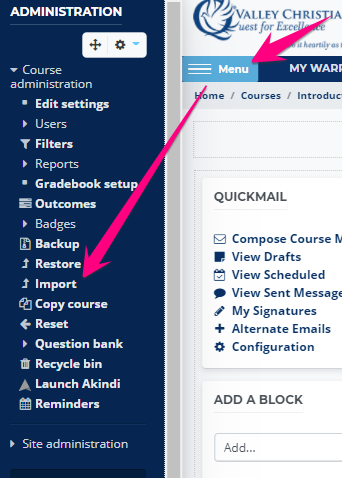
1. Go the course page that you want to import the content into and click MENU > then the Import link from the course administration menu
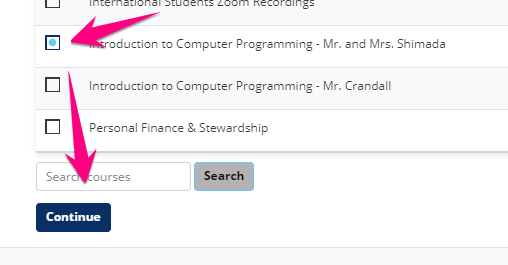
2. Select the course you want to import content from, then click the Continue button
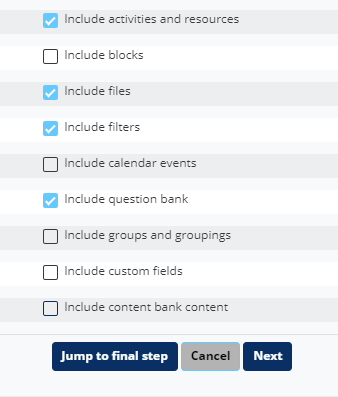
4. Check only the types of content you want to import and click Next
- Note: Only check to include question bank if you're copying a quiz activity.
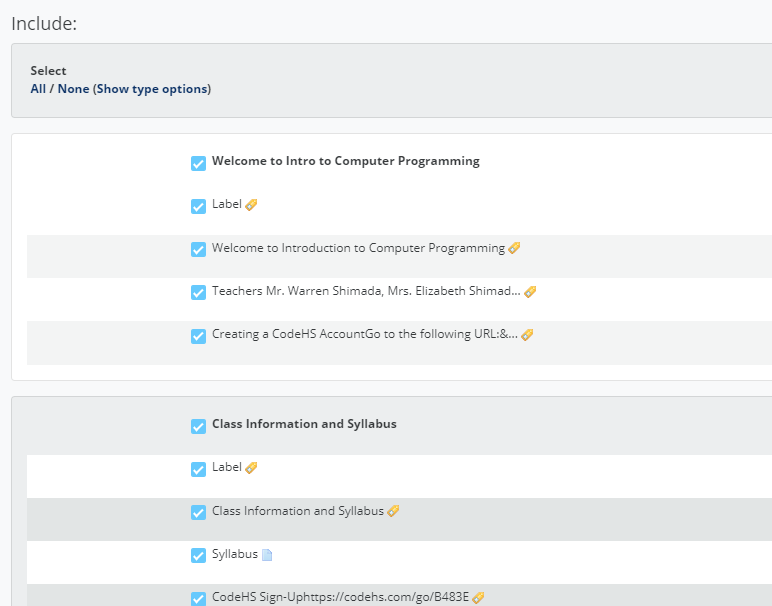
5. Select only the items you want to import
- You can select/deselect individually
- You can use the Select All / None links at the top
- You can also select tab headings to choose all or no items from a tab
7. Scroll all the way down to the bottom-right and click the Next button.
8. Scroll all the way down to the bottom-right and click the Perform Import button.
9. Click the Continue button.
10. You'll find the content on your page. Go ahead and use as you wish.
Comments
0 comments
Please sign in to leave a comment.