
Our PC laptop displays have a very high resolution by default. This can be great because it shows a lot of content on your screen. One of the tradeoffs, however, may be that text, icons, buttons, etc. can be too small to see easily.
To make text and other items on your PC laptop display larger:
1. Close all programs and open folders you're working in.
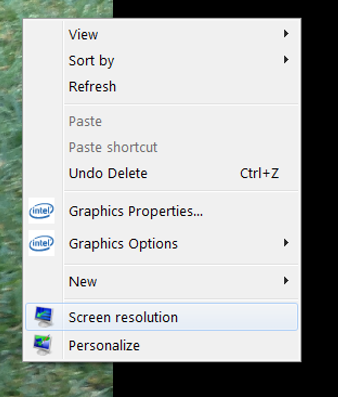
2. Right-click on your desktop and click Screen resolution.
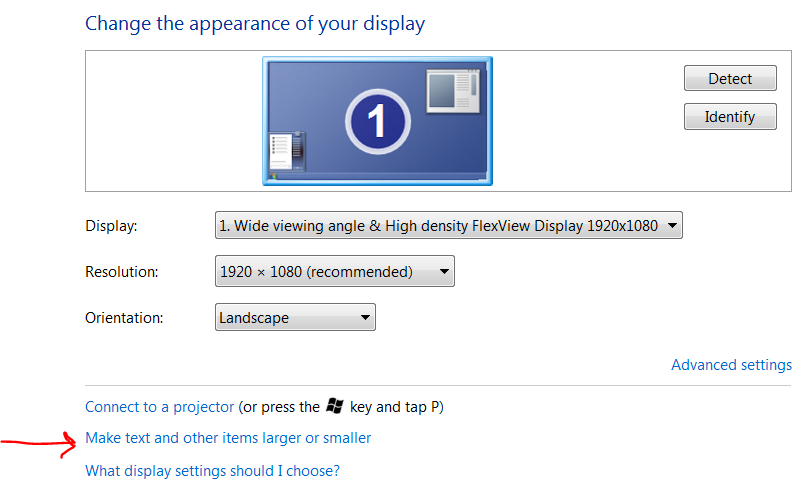
3. Click Make text and other items larger or smaller.
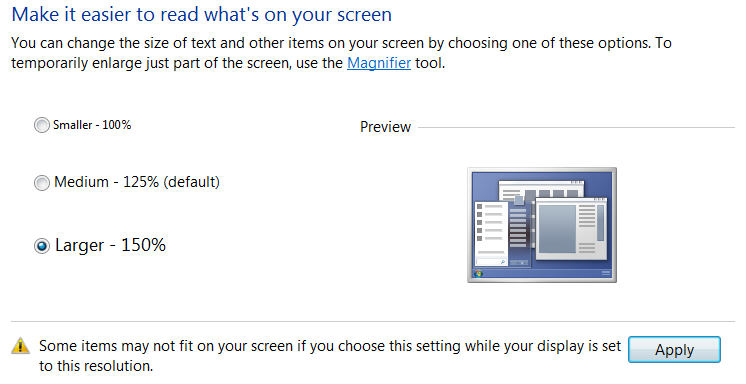
4. Select Larger and click Apply.
5. Click Log off now. Log back in and try out a few of your programs, visit some of your favorite websites, and see if you like the larger size of text and other items on your display.
- If some items aren't fitting on your screen, e.g. a web page, zoom out to fit everything to your screen. To zoom out, press the Ctrl key and the - (minus) key on your keyboard. To zoom in, press the Ctrl key and the + keys.
- You can always follow these steps to switch back to the default Medium size.
Comments
0 comments
Please sign in to leave a comment.