
Follow the steps below to organize your Moodle page in a more friendly way for all:
First, organize your page content in categorized Section Topics
1. Go to your page and click Turn editing on
2. Scroll all the way down your page and click the Increase the number of sections button to create more topic sections, if needed

3. Click the pencil next to the new topic names and rename them according to your course outline (by unit, topic, activity type, quarter, etc.)

4. Move page content into the corresponding topic sections
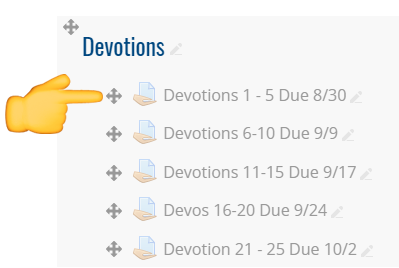
5. Move topic sections up and down in the order you want them

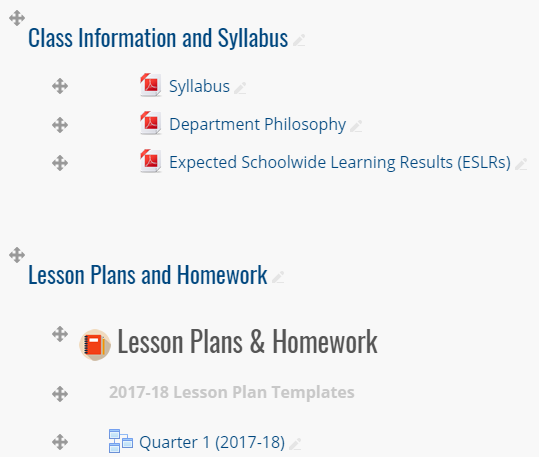
6. Create a Class Information and Syllabus and a Lesson Plans and Homework topic section and move those sections to the top of your page
Next, change your course format to the Onetopic format
7. Click MENU > Edit settings

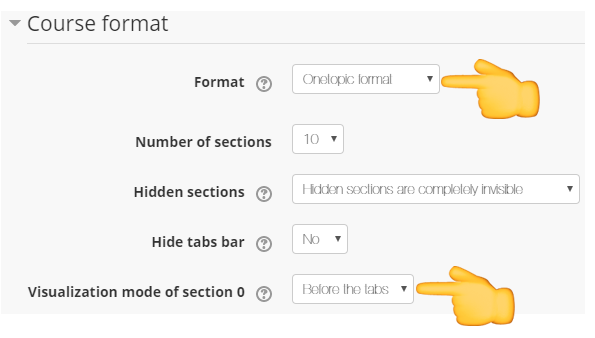
8. Scroll down to the Course format settings and change the format to Onetopic format and the visualization mode of section 0 to Before the tabs.
9. Scroll down and click Save and display
10. Use the steps found here for more information about using the tabs, like changing tab colors, re-arranging tabs, etc.
Comments
0 comments
Please sign in to leave a comment.