
Blocks are helpful items for teachers and students which may be added to a Moodle page (calendar, upcoming events, etc.). They can also be added to the new sidebar menu to so you can make your page full-width for students.
- Click here to learn more about blocks
To manage blocks on your Moodle page:
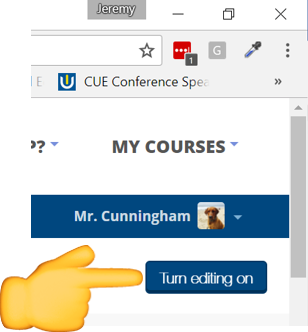
1. Go to your page and click Turn editing on
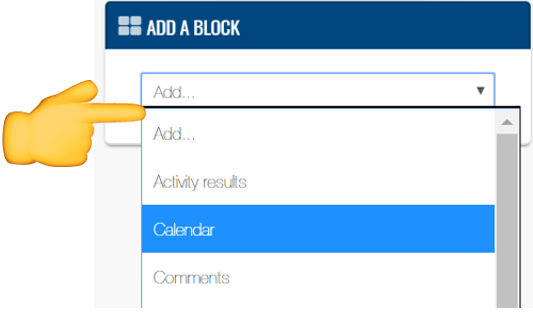
2. Find the ADD A BLOCK menu on the left side of your page and click Add, then click a block
3. You may leave the block on the left side of your course page, or you can move it into the new sliding sidebar menu. To move
- If you already have a block on your page that you'd like to move, or delete, you can using this step
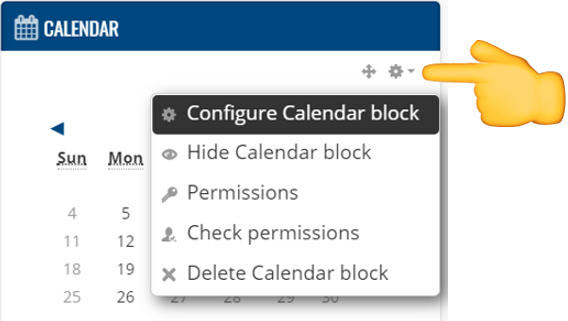
To move a block, click the block settings icon and click Configure block
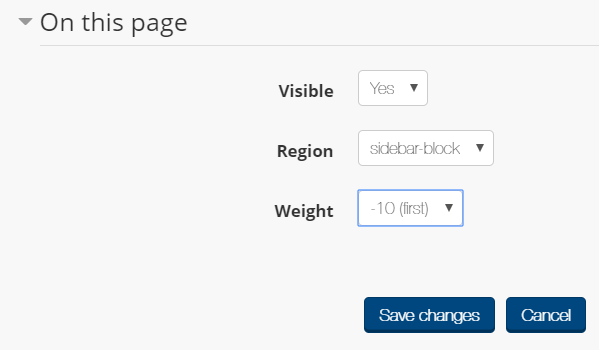
4. From the On this page settings:
- Change the region to sidebar-block (choose either left or sidebar-block)
- Change the weight to order your blocks from top to bottom
- Click Save changes
Comments
0 comments
Please sign in to leave a comment.