
You can host a live face-to-face video chat with up to 25 participants using Google Hangouts.
To start a Google Hangout (Live Event):
1. Go to https://www.youtube.com/ and click Sign in

2. Sign in with your Warriorlife account
3. Click your profile icon in the upper-right, then click Creator 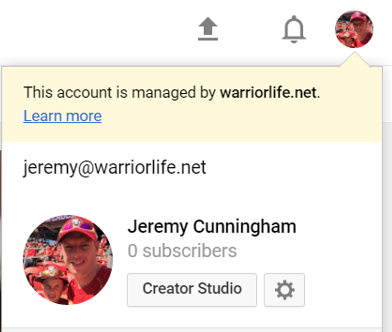
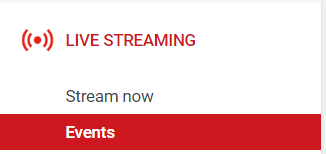
4. Click Live Streaming, then click Events
5. Click Enable live streaming
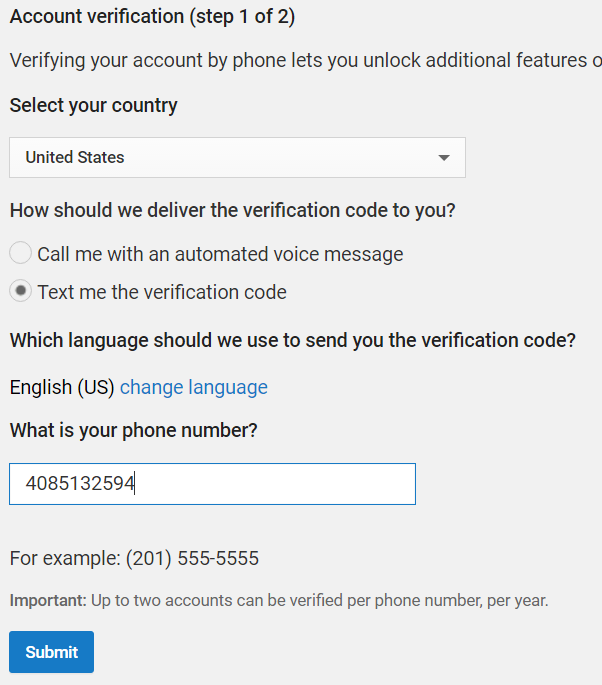
6. Follow the Account Verification steps
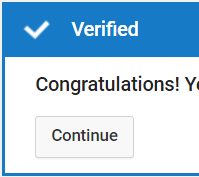
7. Click Continue
8. Click Create live event
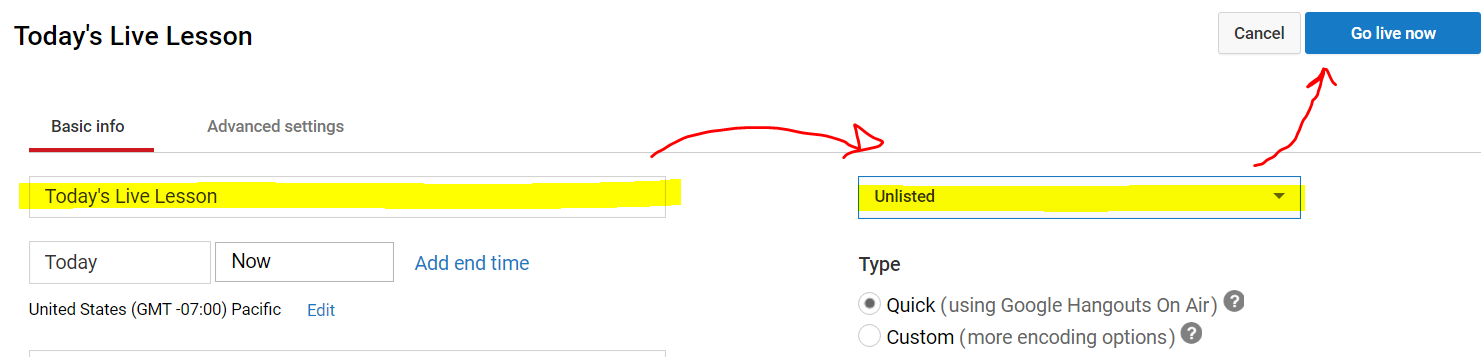
9. Type in a Title, change the availability to Unlisted and the type to Quick, and click Go live now
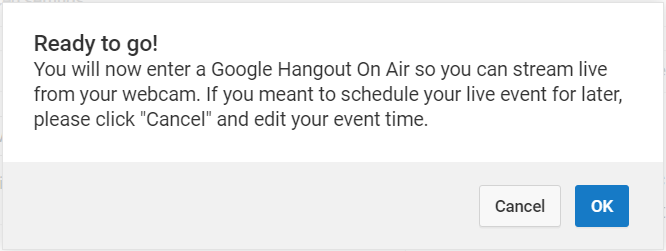
10. Click OK
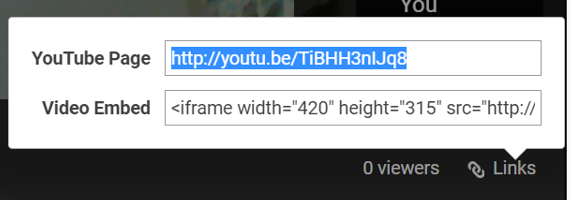
11. Invite participants by clicking Links in the lower-right, then copying the URL to the YouTube page and email it or post it on your Learn@VCS page for participants to click and join the hangout
12. Click Start broadcast when ready

13. Screenshare by hovering over the left side of the hangout window and click the Screenshare button

14. To chat with your participants, go to the YouTube link that they are viewing, pop-out the chat window, and arrange that window next to your recording window


Comments
0 comments
Please sign in to leave a comment.