
Video instruction can be recorded using a simple desktop recording tool installed on your laptop and can be uploaded to Google Drive and linked in Moodle for student viewing on any device.
To record an instructional video Using QuickTime Player (MAC):
1. Open your instructional materials (PowerPoint, Web, etc.).

2. Click Finder > Applications then double-click QuickTime Player.

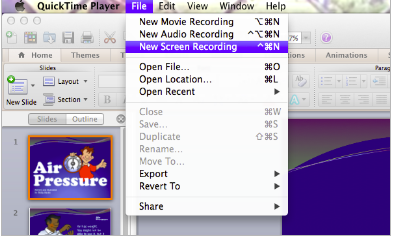
3. Click File > New Screen Recording.
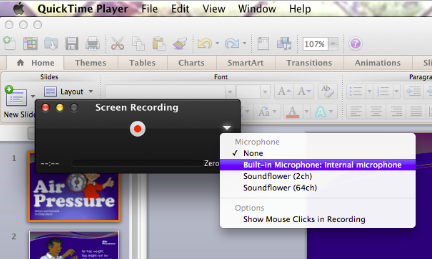
4. Click Settings drop-down menu and select Built-In Microphone: Internal Microphone.
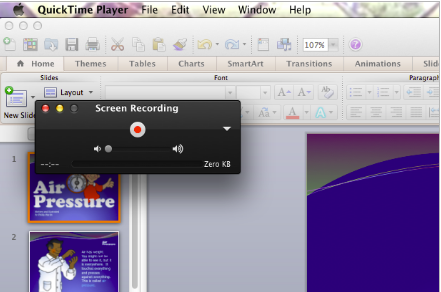
5. Click the Record button.
6. Narrate your instructional materials.
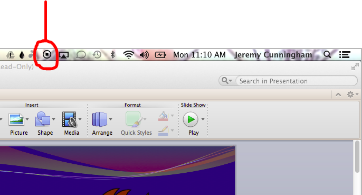
7. Click the Stop button when you’re finished recording.
8. Watch the video. If the audio and video quality are satisfactory, proceed to the next step. If not, record again.
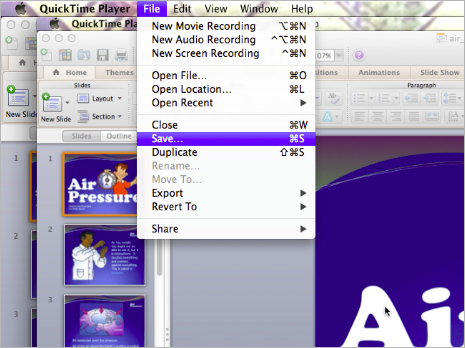
9. Click File > Save and save the recording.
Comments
0 comments
Please sign in to leave a comment.